I don’t know whats going on, but after building my TimeFinder app and cleaning the repository before, then maven downloaded a lot of jars. Maybe too much?
A picture is worth a thousand words:

Again: one build/application!
I don’t know whats going on, but after building my TimeFinder app and cleaning the repository before, then maven downloaded a lot of jars. Maybe too much?
A picture is worth a thousand words:
Again: one build/application!
In the previous sections we learned how to create a simple Java program and tested it. We mainly did procedural programming, while now we will learn how to better encapsulate functionality and data with the help of object oriented programming (OOP). The aim of OOP is mainly to provide better code re-use than it would be the case with procedural programming. With OOP it is easier to write large software and personally I think, it leads to better readable code.
A nice introduction to OOP with Java could be given via:
An object is a self-contained entity which has its own collection of properties (ie. data) and methods (ie. operations) that encapsulate functionality into a reusable and dynamically loaded structure. After a class definition has been created as a prototype, it can be used as a template for creating new subclasses (via extends keyword) that add functionality. … Applications can request new objects of a particular class on demand via the new keyword.
What you will learn in this section:
So check out the previous example at the following URL with subversion:
https://timefinder.svn.sourceforge.net/svnroot/timefinder/branches/tdteaching/TestDrivenTeaching2/
Open it in your favourite IDE and we will now apply some necessary refactorings (code changes) to transform a procedural program into a more object oriented one.
What is refactoring? Code refactoring means code changes, which have the aim to make the code better readable or introduce a cleaner design. But refactoring does not change how the applications works.
First: let us get rid of the static keyword:
BlockMan man1 = new BlockMan();
man1.start();
or with a shorter version:
new BlockMan().start();
Instead of calling the static start method of the BlockMan class we can now create a BlockMan object and invoke the start method of this object. Now it is simple to create and manage not only one man but several men:
BlockMan man1 = new BlockMan();
man1.move(0, 1);
BlockMan man2 = new BlockMan();
man2.move(0, 2);
The first man man1 is located after this operation at x=0 and y=1 (0; 1) but man2 is located at a different location (0; 2) after the move method call.
We should have added a test case before some code. So here it is:
BlockMan man1 = new BlockMan();
BlockMan man2 = new BlockMan();

man1.move(0, 1);
man2.move(0, 2);

assertEquals(1, man1.y);
assertEquals(2, man2.y);

man2.move(0, 2);

assertEquals(1, man1.y);
assertEquals(4, man2.y);
(A good but not ideal comparison of Class/Object in the real world: A class could be compared to a rubber stamp and an object to the resulting images on the paper.)
Additionally we should change the public access of the x and y variable. What does access mean? We learned in the previous post that we can use variables like x only in its block and sub-blocks, where it was defined. Now we used public before the variable declaration so that we can access (or ‘see’) the variable from all external code, which is called world in the following table. A short overview of this can be given:
| Modifier | Class | Package | Subclass | World |
|---|---|---|---|---|
public |
Y | Y | Y | Y |
protected |
Y | Y | Y | N |
| no keyword == package access |
Y | Y | N | N |
private |
Y | N | N | N |
This table was taken from sun, where you can get more information about this topic.
With public acces we can retrieve y (the same is true for x)
assertEquals(1, man1.y);
and even initialize y:
man1.x = -100;
This is not good in the most cases and as you see here: the y value is not in its correct domain [0; 10). External code could change the variables without knowing the bounds or sth. else. E.g. the move-method is a better approach to change the variables x and y.
So, just make all variables private and provide public methods to manage initialization and retrieval of such a variable via setter and getter. Instead ‘public int x;’ you should do:
 private int x;

 // the getter is used for the retrieval
 public int getX() {
   return x;
 }

 // the setter is used for the initialization
 public void setX(int someX) {
   x = someX;
 }
Now you can simply remove the setX method and ‘external code’ is not able to change x without the appropriate move method.
The x and y variables are sometimes called properties. To create such property-access-methods (getter and setter) with NetBeans press ALT INS and select Generate ‘Getter and Setter…’
We are near the finish of refactoring so check out the code of this third section to compare your refactored code with my code:
https://timefinder.svn.sourceforge.net/svnroot/timefinder/branches/tdteaching/TestDrivenTeaching3/
More details on subversion was given in the second section.
To compare the files go to the Projects window and select both files (hold CTRL). Then right-click->Tools->Diff

You will notice that I introduced two methods too: moveX and moveY to make our class easier to use. Also the border values could be now accessed from outside via getBorderX and getBorderY
For Java exists different comparison operations. The first most obvious comparison with the == operator isn’t always the correct one, because this operator compares only the references stored in an variable. For that please look into the class DifferentComparisonTest and you will see the statements:
System.out.println(new MyHouseWithoutEquals("House1"));
System.out.println(new MyHouseWithoutEquals("House1"));
which results e.g. in
de.tdtut.section3.DifferentComparisonTest$MyHouseWithoutEquals@a17083
de.tdtut.section3.DifferentComparisonTest$MyHouseWithoutEquals@e1d5ea
So it is obvious that the following will pass:
MyHouseWithoutEquals var1 = new MyHouseWithoutEquals("House1");
MyHouseWithoutEquals var2 = new MyHouseWithoutEquals("House1");
assertFalse(var1 == var2);
But even with the call of the equals method you won’t get happy:
assertFalse(var1.equals(var2));
Only if you implement the equals method correctly like it is done in the class MyHousWithEquals, then you can write the following
MyHouseWithEquals var3 = new MyHouseWithEquals("House1"); // instance1
MyHouseWithEquals var4 = new MyHouseWithEquals("House1"); // instance2

assertTrue(var3.equals(var4));
Keep in mind that also with a proper equals method the normal comparison would fail, because everytime the new operator is called a new object will be created!
assertFalse(var3 == var4);
Now I would like to show when the == operator is true and when the equals is false even if proper implemented:
MyHouseWithEquals var5 = var3;
MyHouseWithEquals var6 = new MyHouseWithEquals("House2"); // instance3
assertTrue(var3 == var5);
assertFalse(var6.equals(var3);
assertFalse(var6.equals(var4);
Please look at the following picture where some of the previous variables are listed. The picture represents a simplified, logical view of the ‘current RAM‘ (the order of the variables and instances is not important).

The difference between the comparison mechanisms is also important in unit tests. Sometimes you will use:
assertTrue(obj == anotherObj);
But most of the time you will use
assertTrue(obj.equals(anotherObj));
or even better the assertEquals method which is already shipped by junit and which invokes the equals method under the hood:
assertEquals(obj, anotherObj);
Notes:
In the unit tests of the third example
https://timefinder.svn.sourceforge.net/svnroot/timefinder/branches/tdteaching/TestDrivenTeaching3/
the following things will be further explained:
As the last important information I would like to say that object oriented programming is not the heaven of programming. Please keep in mind that every approach has its drawbacks.
For example I would not introduce a Point variable within the BlockMan class instead of the two variables x and y. Why? Hmmh .. I think it is more convenient to directly access the x or y instead of getPoint().x or getPoint().y.
Another drawback is that for every object some memory overhead is introduced. Not a lot and it does not always matter, but you should keep this in mind for later projects!
Now that you are a bit comfortable with your IDE and Java itself we will code the initial lines of the game in this tutorial.
What you will learn in this section:
This project won’t be available as zip file. You need to install a subversion client (e.g. TortoiseSVN for windows and KDESvn for linux) or use subversion in your IDE. For NetBeans go to the Team menu->Checkout…
Then type in the following url:
https://timefinder.svn.sourceforge.net/svnroot/timefinder/branches/tdteaching/TestDrivenTeaching2/
No login or password is required only specify the ‘Local Folder’ to match your needs. Open the project if NetBeans asks you. For some screenshots look here.
Right click the project->and click Test. The unit test window should pop up and all tests should pass (green).
Open the class InitialBlockGame which is located under the package called de.tdtut.section2. Look around a bit. You might have already noticed in the first part that there are special characters which looks grey in NetBeans: the comments which do not effect the program execution.
int myVariable;
This is an integer variable, which can hold only integer values, such as 1,2, -3 etc. the maximal value is stored under Integer.MAX_VALUE. If you want to initialize a variable do:
myVariable = 3;
You can do declaration and initialization at the same time:
int myVariable = 3;
Now it is important that you look into the test case shipped with the second project to get a better understanding of the various types and possible operations. To run the test right click into the file and click ‘Test File’ or press CTRL F6.
Hint for later usage: If you create an additional Java class within the package via right click on the package->New->Java Class…, then you can easily generate a new test file for it: CTRL SHIFT U
You now know variables and comments but also note that there are blocks like the for-loop in the previous post defined by curly brackets:
public class InitialBlockGame {
  ...
}
and e.g. the method definition
public static void start() {
  ...
}
The first block is the definition of a class called InitialBlockGame and the second block is a method called start without a return type, so: void start(). There are also methods like move which requires method parameters.
If you declare a variable it will be accessible only from within that block and also sub-blocks. The following code fragment should illustrate this:
public class InitialBlockGame {
 public int x;
 ...
 public void start() {
   int test;
   // here we can use the test and x variables
 }

 public void move(int dx, int dy) {
   // here we can use the x, dx, and dy variables
   // but not the test variable declared within the start() method
 }
}
We cannot easily create a test case for this, because e.g. the usage of test within the move method wouldn’t compile at all! But in scripting language like Ruby or Groovy this could be done.
Another important approach to manage the access of variables or even methods via the public, protected and private keywords will be explained in the next section.
To debug a Java class right click into the file (e.g. InitialBlockGame) and click ‘Debug File’ or CTRL SHIFT F5. But before you should set a breakpoint e.g. on the line
Random rand = new Random(123);
Then go through the code step by step via F8. Investigate the value of the variable lifeCounter through holding the mouse over it.
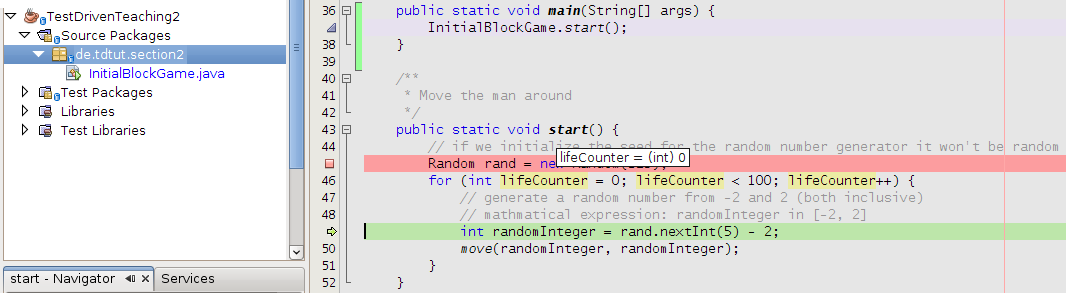
Another approach is to open the Watches window via Window->Debugging->Watches and add lifeCounter to it (right click->New Watch…)
Simply press CTRL SPACE e.g. after ‘InitialBlockGame.’ and all variables and methods will be listed:

This makes it very easy and fast to learn and explore unknown code (e.g. a library). This is the most powerful command an IDE provides you compared to a simple text editor. Try to invoke this command (CTRL SPACE) within the class definition block or after you typed ‘int’ within a method to see what the IDE provides you to make development easier.
Another powerful command every IDE provides is CTRL mouseclick. E.g. try to click on the move method (hold CTRL while that) in the start method (line ~50) you will see that the IDE leads you to the move method declaration. Or click on ‘Random’ in the start method (line ~45) this will open the Random class automagically! The same will work with your own classes and method. Try clicking around 😉
If you look into the move method you will see some if-statements e.g.:
if (x + dx >= 0 && x + dx < 10)
 x = x + dx;
Where dx is the change of move in x-direction. If dx is now too large or too negative it won’t be applied.
Look into the test case testMove() to get a better understanding and play around a bit with the code.
Do not hesitate to comment below!
The first part of this tutorial for beginners is the ordinary ‘Hello World’ example which won’t be tested. Hey why not? Because this simple example is only used to check if the set-up works.
What you will learn in this section:
The reader will learn how to set-up the example in his integrated development environment (IDE) of choice, build and run it. He will see that the ‘Hello World’ will be printed in the console output window of the IDE.
I will explain the set-up for NetBeans only. But there are other free and very powerful IDEs as well. E.g. Eclipse and IntelliJ Idea can be used as good alternatives.
As the very first step download and install the Java Development Kit (JDK) from Sun (not Java Runtime Environment = JRE). Then get the latest NetBeans here where the ‘Java SE’ package is sufficient.
Get the example as zip file here and extract it into your local folder using NetBeans:
Open the favourite window under Window->Favourites. Right click into this window and add the download folder (with the zip file) to favourites:
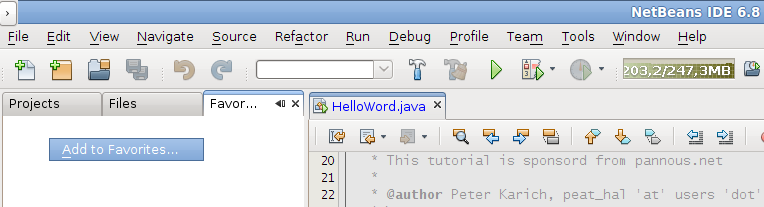
Expand the zip file (left triangle) and copy the folder via right click:

Then paste it where you like. Open the project via right click->Open Project ‘TestDrivenTeaching1’ or open it via File->Open Project…
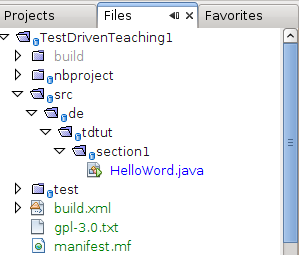
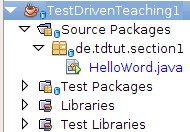
All the code is free software and stands under the GPL v3.0. All sources are located under the src folder; all subfolders of this folder are equivalent to Java packages and are used to better organize your code. You will see the logical ‘Java package’-view on this project within the ‘Projects Window’ and the ‘ordinary folder’-view in the ‘Files Window’:
So look into the package de.tdtut.section1 to open the HelloWord class with double click:
Then click on ‘Run File’ or press SHIFT F6 within this HelloWorld file and you will see in the ‘Output Window’ sth. like:
run:
Hello World
0
BUILD SUCCESSFUL
(The first and last statement are generated from NetBeans and should be ignored!)
Congrats for your first Java program!
If you compile the Java sourcecode, which is done by the IDE, it will generate bytecode (several files ending with .class). This bytecode could run on every operating system by the Java interpreter (java) and is automatically bundled to one jar file from your IDE. The Java interpreter creates plattform-specific machine code from the bytecode and extremely optimizes it.
Now more details how the Hello-Word-example works:
Under the hood the character-band (called String) “Hello World” will be passed as the single parameter to the method println (‘print line to standard output’) of the single object called ‘System.out’.
Every standalone Java application can be started outside of NetBeans e.g. from command line. Go to the folder of the project and type:
java -cp dist/TestDrivenTeaching.jar de.tdtut.section1.HelloWord
As output you should see ‘Hello World’ only. The last argument must be a class with the main method:
public static void main(String[] args)
If you append some arguments on the command line e.g. via:
java -cp dist/TestDrivenTeaching.jar de.tdtut.section1.HelloWord arg1 arg2
You will see
Hello World
2
arg1
arg2
This is because of the for-loop, which looks into the list of strings and picks one after another.
for (String arg : args) {
  System.out.println(arg);
}
This list is called array and was initialized from the command line arguments and has a static lenght, which cannot be changed afterwards. If you want to access one element of an array you can do this via args[0] and args[1]. Be sure that the number (called index) starts from 0 and goes only until args.length – 1. So if you want to have full control of the iteration use this version with an explicit counter of type int:
for (int i = 0; i < args.length; i++) {
  System.out.println(args[i]);
}
The counter i is declared (and visible) only within the block of the for-loop. With the line
int i = 0;
i was declared and initialized with 0. After each step i will be incremented by one. The loop will execute its block only if the counter i is smaller than args.length.
If this part is a bit overwhelming for your head: no problem! Just try a bit around or go ahead to the next section!
Just try other things to get a deeper knowledge of Java! E.g. you could declare some other variables and print them or try to iterate in inverse order through the array args. The most important step to learn programming or a new programming language is to think what you want and try to implement this.
If you have problems, questions or suggestions, then do not hesitate to comment below!
0. This overview article
1. Hello World
3. Object Oriented Programming – Refactoring!
The idea of test-driven development (TDD) is not a new one and also the idea of test-driven teaching is not new (see also at springer or here).
The main idea is to write working code examples based on TDD for beginners. The students should then be able to code (unit) tests and to read them from the very beginning. Most people learned TDD some years after learning ‘programming itself’, although I think TDD is already part of every coding. Most programmers ‘code’ + ‘test’ + ‘bug fix’ + ‘test’ + etc. But with TDD you have the benefit that your tests can be executed later automatically and very fast, which ensures that early requirements are valid
I won’t give a lot details of TDD here, but the main advantages of TDD are:
The ‘real’ development cycle for TDD is outlined at wikipedia. My subjective suggestion to you my fellow reader is:
Within all steps refactoring could be involved.
Additionally to the explanation what different primitive types in Java are, there will unit tests like the following:
@Test
public void testLongAndInteger() {
 // an important difference of a long value to an integer value is the range:
 int  expectedInt  = 2147483647;
 // L indicates a long value
 long expectedLong = 9223372036854775807L;
 assertEquals( expectedInt, Integer.MAX_VALUE);
 assertEquals(expectedLong, Long.MAX_VALUE);

 // here is the problem what happens to an integer variable which
 // exceeds its domain: increasing the maximal value will cause the
 // variable to be negative!
 int intVal = Integer.MAX_VALUE + 1;
 assertTrue(intVal < 0);
}
This simple tutorial will not replace a good old Java textbook e.g. the JavaInsel (German) or other, but could be used in parallel. It is a pity that even those big and great books do not teach such important hand toolings (TDD).
Other important learning steps should be involved while teaching a programming language:
So, how should we structure such a beginner course where test-driven development is involved?
As a beginner I would prefer a ‘real life’ project. We should develop an idea and implement this while teaching (with refactoring!). It should be an idea which does not require a lot of set-up or external resources (such as an internet connection, web app etc). And it should be either useful (sth. like a xml conversion tool), a game or sth. that looks nice.
In this tutorial we will implement a simple game with Swing as the graphical user interface (GUI) to make it visually more appealing than an ordinary console output. The Swing coding chapters should and can be skipped at the first time of reading. Although user interface code can be tested (e.g. with FEST) they won’t, because of the lack of time of myself. The game itself should look like this but actually won’t (again lack of time).
BTW: I’m the author of GraphHopper, a fast open source route planner
As I started with Rails development I discovered the very neat feature of database migrations. For me this was the main advantage of using Rails compared to a pure Java solution.
In our Rails application this works without any problems: you can change the database schema as well as migrating the data itself via ruby.
I needed a similar feature at that time in Java and discovered Liquibase, which was relative easy to use and stable. But it has (in my opinion) one major drawback that you have to use xml and for your data migration you even have to use pure SQL. Then you’ll run fast into some issues (e.g. this). But okay, there is also one advantage over the Rails-mechanism: you don’t need to specify the rollback statement (if it is not pure SQL) – liquibase knows from the migration command which revert command it should use.
If you use Hibernate one could stick with SchemaUpdate, but several things don’t work properly with that approach.
Another idea would be to export objects from version 1 and import them into version 2 directly within your application logic e.g. with Groovy … or should I give DMT I try?
Now I thought that Grails could solve this issue better for Java, but to my knowledge (‘Automatic Database Migration’) there is not such a mature migration concept within Grails like in Rails. The Liquibase plugin (grails install-plugin liquibase) or the outdated (?) dbmigrate plugin (grails install-plugin dbmigrate) can solve this as well as autobase, which is based on liquibase too. Does somebody has experiences with that? Here is a mini comparison.
Today I discovered migrate4j, which seems to be the best tool I found so far for pure Java. Another option would be to use JRuby with Rails or simply rails, but this would be a bit of an architecture overkill for the most people, I fear.
Other choices might be:
Do you know other (better?) solutions? How do you do db migrations?
Now you can develop your Griffon application within NetBeans 6.8. The Griffon plugin is maintained from Geertjan and works now with version 6.8.
Before it was necessary to
So its great to have it easier now in NetBeans!
Finally I was approved for Sun’s Warehouse and the fun of uploading can begin!
Sun made a nice job for the Java Store. It looks good although not ready (the gray bar at the right side is what?). See for yourself:
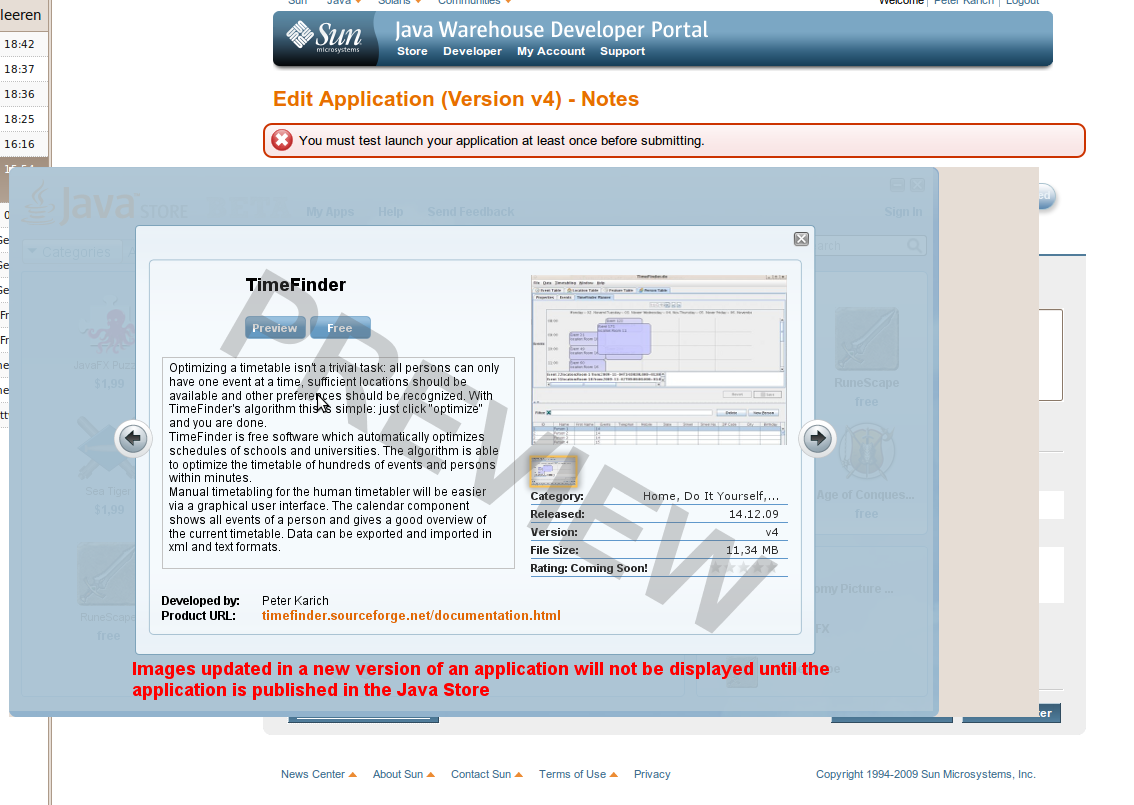
But the procedure to submit my TimeFinder application was very awful!
Finally I wasn’t able to upload anything working to Java Store 😦
I do not understand why the developer should use the ugly webpages and the user can use the nice Java Store client? Why not merge front- and back-end to an ultimate “JavaStore”?
In the end: please make it a bit easier! At least for me 😉
I know this is from developer for developer, but how should a normal “script kiddy” post its (JavaFX) apps there? E.g. why do you need to force that security stuff? If it is not signed you could simply warn the user. Or why not?
Some weeks ago I asked my self and some fellows: why should I ever use Twitter? Why? It seemed so senseless…
Now I have an account on twitter and I know it could be useful for me although I still think it is not necessary 😉
Here are the important points why you “can/should/must (not) use Twitter”:
Possible future usages:
What else?
As a developer it is now possible to use the Warehouse from Germany (and other countries). Read this for more information.
The Warehouse allows Java(FX) developers to submit applications to the Warehouse which can be downloaded from users using the JavaStore.
(Why so complicated?? And not only the Java Store??)

 Navigatone