Standard Timetabling Format

Today I will again promote my timetabling project 😉

To recreate a new Java-based Timetable Suite called TimeFinder some people and I want to create a standard timetabling format before going further.

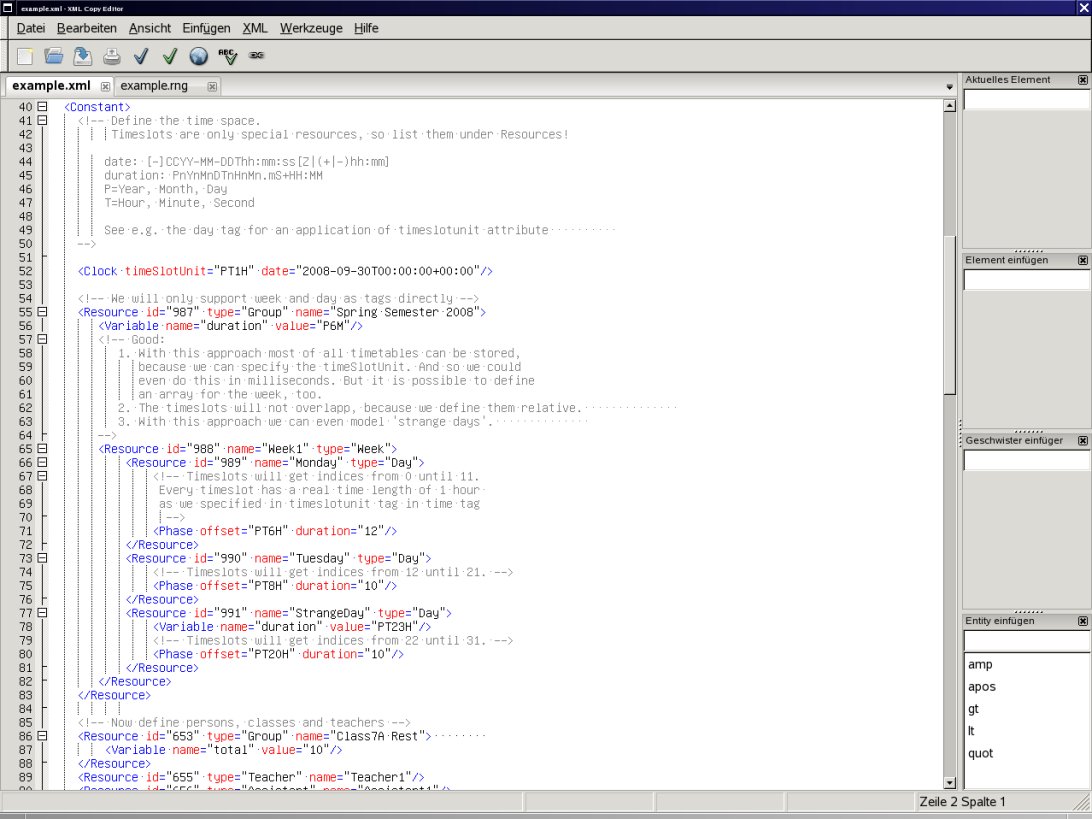
Today I released a new draft 0.3 of this discussion with an example xml file that was created with the xml copy editor:

Excerpt of draft 0.3 of the standard timetabling format

Therefore I had to use Relax NG and I will use relaxer: http://www.relaxer.jp/documentation/ to create Java classes from it. For more information on this subject see my blog about Relax NG.

The format should help to improve interoperation of open source, university and commercial timetabling applications. To my knowledge all applications use different formats. The only wider accepted standard is TTML, but it gets complicated for the ‘normal’ developer and unusable for the user. Taken from here there they said:
Perhaps, the main reason these languages have not been adopted as standard is that
they offer no advantages to the user over any traditional programming language.
These idealistic languages do not simplify the modelling process, and can even be
restrictive in that they do not have all the features of a modern programming
language, are overly complicated or appear cumbersome.

For the latest information of the progress of the ‘Timetabling Standard Format’ visit the discussion here and look at the TimeFinder project.

OpenOffice

For my diploma thesis in physics I had to create an A0 poster in OpenOffice (OO) to present the work on the dpg (german physicist association) in berlin. This was easy, but some things were annoying. E.g. the formulas are pictures and not integrated in the text. But I like the formula editor, which is better than in comparable office suites.

And I decided against e.g. scribus, because inserting formulas is not possible at the moment you can only import them via pdf’s created by latex. BTW: you have to do this via ‘import picture’!.

OO is really powerful: importing various formats, supports a lot of character types and you could create pictures or sketches within OO. I didn’t do that because the pictures in the latex-thesis itself has to be .eps files. The exported .eps files from OO weren’t readable. (Why?) So, I did it with inkscape – a wunderful and intuitive vector graphics tool I think.

Here a small picture of the result:

Poster (Top)

Poster (Left)

Relax NG

For my open source timetabling application (gstpl) I want to create a file format. There are some standard timetabling formats, but none of them is easy and general.

I decided to use a schema to validate the created xml file. Checking the well-formedness is easy, but for validation you need to define a grammer, i.e.define what tags (and attributes) should be possible and which combinations.

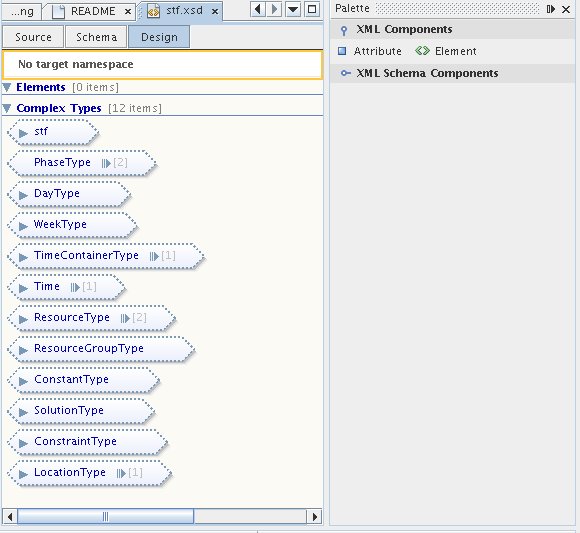
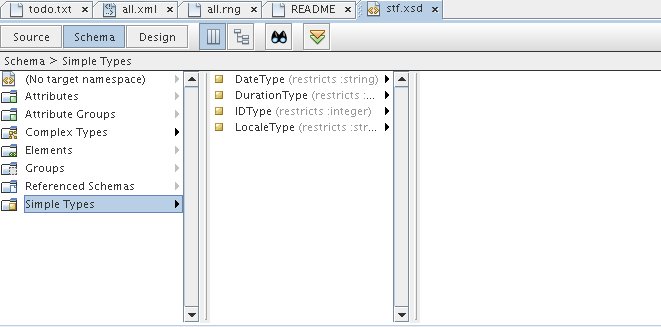
There are three main schema types: DTD, XML Schema and Relax NG (.dtd, .xsd and .rng/.rnc). The first one is not so powerful, so perhaps it is better to use XML Schema. There are a lot of editors like “NetBeans XML” which can handle the validation of XML Schema and even the schema creation from within the editor. There is a graphical editor available:

NetBeans XML DesignerNetBeans XML Editor

For Relax NG I didn’t find such a good and free editor easily for linux, although I could write alot faster with Relax NG. E.g. in XML Schema you need:

<xs:element name=”Header”>
<xs:complexType>
<xs:sequence> …

In Relax NG you only need one line:

<element name=”Header”>

And attributes are handled compareable to elements – in this way you can define e.g. that either a tag ‘test’ or an element ‘test’ should exist:

<choice>

<element name=”test”><text/></element>

<attribute name=”test”><data type=”string”/></attribute>

</choice>

I found no way to define it in XML Schema.

Now here are some editors:

  • XML Copy Editor RelaxNG editing and validation (no support for compact style)
  • Etna (only xml editor where you ensure that the created xml is valid against some given schemas)
  • nXML addon for emacs

some (extern) validators:

  • jing compact and xml style
  • rnv only compact style
  • relax ng + XML Schema via Sun Multi-Schema XML Validator (MSV), select msv.20080213.zip
  • relax ng with embedded schematron constraints via MSV, select relames.20060319.zip.

some (extern) conversation tools:

  • via MSV (select rngconv.20060319.zip) you can create a relax ng file from various schemas types.
  • trang (could even create a schema from a given example xml – I didn’t tried it)
  • relaxer is a compiler to generate various artifacts from a schema (download version 1.0), could even create a schema from a given example xml – it works!! A lot more intersting features are provided.

some tools:

  • via MSV (select xmlgen.20060319.zip) you can create xml files from various schemas types. To have some test instances of the created schema.
  • XML Schema Datatypes implementation via MSV (select xsdlib.20060319.zip) to use XML Schema Part 2

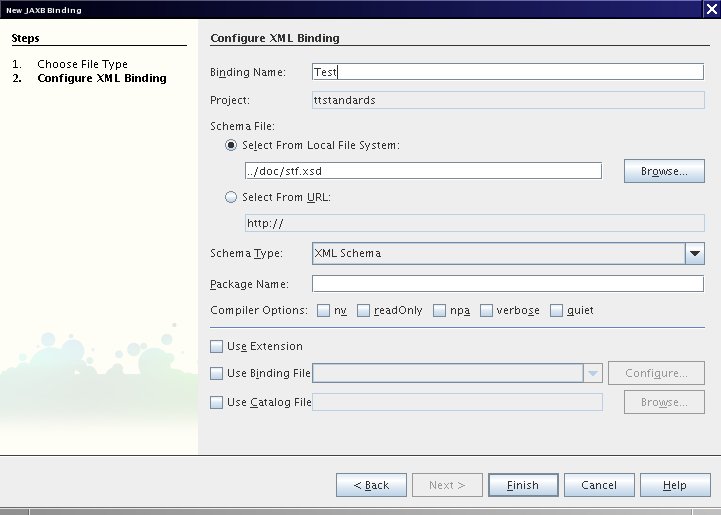
So after creating my schema in relax ng (this was really faster then with XML Schema) I can convert it into XML Schema. Then NetBeans offers a JAXB Binding (schema to java code) for XML Schemas:

NetBeans JAXB Binding Dialog

(You have to install the whole netbeans – I think the xml + soa stuff??)

Lizenztext und Benutzername | Custom License-text and User-name for NetBeans

Ich habs endlich hinbekommen: jede neue Datei trÀgt meinen Name als @author und meine eigene Lizenz im Dateikopf.

(For the english version see below)

Eigener Lizenztext

Zuerst mĂŒsst ihr den Lizenztext z.B. nach /home/user/quell/license-lgpl.txt kopieren. Der Name dieser Datei ist dabei wichtig.

Als nÀchstes in der projekt-spezifischen Datei nbproject/project.properties

project.license=lgpl

einfĂŒgen. Z.B. innerhalb NetBeans: Einfach euer Projekt in der Dateiansicht ‘File’ öffnen.

Jetzt mĂŒssen wir NetBeans noch sagen wo die Datei license-lgpl.txt steckt:

WĂ€hle in Tools->Templates den Knoten ‘Licenses’ aus und

suche mittels ‘Add..’ die vorher kreierte Datei /home/user/quell/license-lgpl.txt.

Diese sollte dann unter Licenses hinzugefĂŒgt worden sein.

Nun einfach mittels Rechtsklick auf ein Java Paket ausprobieren:

New->Java Interface auswĂ€hlen und ‘Constraint’ eingeben.

VerÀnderter Benutzername

Dies ist ein Trick von Geertjan. Die User.properties öffnen:

in Tools->Templates->User Configuration Properties->User.properties

Dort einfach einfĂŒgen

user=Peter Karich, peat_hal ‘at’ users ‘dot’ sourceforge ‘dot’ net

English Translation

I have solved the problem in the latest NetBeans 6.1: every new file has my name as a value for the @author attribute and my own license text as header.

Your own license text

First of all you have to copy your license text e.g. to /home/user/quell/license-lgpl.txt. The name of this file is important.

As a next step go into the project specific file nbproject/project.properties and add

project.license=lgpl

E.g. with the files window within NetBeans.

Now you have to specify that you want to use this file as license text:

Go to Tools->Templates and choose ‘Licenses’ then search via ‘Add..’ the previously created file /home/user/quell/license-lgpl.txt.

To test it right click on a java package and choose:

New->Java Interface auswĂ€hlen; then type ‘Constraint’ and you should see the license header.

Here is an example of an adapted apache header:

<#if licenseFirst??>
${licenseFirst}
</#if>
${licensePrefix}This file is part of the TimeFinder project.
${licensePrefix}Visit http://www.timefinder.de for more information.
${licensePrefix}Copyright ${date?date?string(“yyyy”)} the original author or authors.
${licensePrefix}
${licensePrefix}Licensed under the Apache License, Version 2.0 (the “License”);
${licensePrefix}you may not use this file except in compliance with the License.
${licensePrefix}You may obtain a copy of the License at
${licensePrefix}
${licensePrefix} http://www.apache.org/licenses/LICENSE-2.0
${licensePrefix}
${licensePrefix}Unless required by applicable law or agreed to in writing, software
${licensePrefix}distributed under the License is distributed on an “AS IS” BASIS,
${licensePrefix}WITHOUT WARRANTIES OR CONDITIONS OF ANY KIND, either express or implied.
${licensePrefix}See the License for the specific language governing permissions and
${licensePrefix}limitations under the License.
<#if licenseLast??>
${licenseLast}
</#if>

Change your user name

This trick is from Geertjan. Open User.properties in Tools->Templates->User Configuration Properties->User.properties

Replace all stuff with

user=Peter Karich, peat_hal ‘at’ users ‘dot’ sourceforge ‘dot’ net

and you are done.
Dankeschön NetBeans und Co

…. und ein großes Dankeschön geht an ….

NetBeans!

Warum?

Ich arbeite schon seit ein paar Jahren an einem Stundenplaner – ein Open Source Projekt names gstpl. Und NetBeans war immer an meiner Seite (in schweren wie in guten Zeiten … :-), Java natĂŒrlich auch…

Vor ein paar Monaten began ich dann einen Algorithmus aufzuschreiben (einige der Ideen hatte ich schon ein paar Jahre vorher) um an einem Wettbewerb teilzunehmen. Die ‘Deadline’ dafĂŒr war heute Mittag und ohne NetBeans hĂ€tte ich wohl nie auch nur annĂ€hernd recht gute Ergebnisse erziehlt. Und neben meiner Physik-Diplomarbeit und anderen wichtigen Dingen im Leben hatte ich eigentlich gar keine Zeit 😉 Die ProduktivitĂ€t ist mit Java+NetBeans (‘javne’) im Gegensatz zu ‘frĂŒher’ mit C++ – fĂŒr mich gesprochen – um den Faktor 4 gestiegen.

Was heißt nun gute Ergebnisse? Wenn man mit ‘Stundenplanen’ anfĂ€ngt so stellt sich die Frage: ‘Gibt es den optimalen Stundenplan’ fĂŒr ein bestimmtes Problem? Ja, den gibt es! Nur wĂŒrde es ziemlich lange dauern diese zu finden. Man muss ja alle Lösungen durchgehen und dann auch verifizieren, dass es die Beste ist… Man versucht also Methoden zu finden die in annehmbarer Zeit (auf meinem PC hatte ich im Wettbewerb ca. 11 Minuten) eine möglichst gute Lösung finden können. Sie sollten also ein ausgewogenes Maß an ‘aktuelle Version verbessern’ und ‘gĂ€nzlich neue Lösung finden’ besitzen.

Etwas konkreter: Es gab ein paar Personen (z.B. 1000) die FĂ€cher (insgesamt z.B. 400) gewĂ€hlt hatten. Ist es nun möglich einen Stundeplan zu bauen der keine Konflikte beinhaltet? Ein Konflikt kann z.B. auftreten, wenn eine Person zwei FĂ€cher zur selben Zeit besuchen soll oder wenn zwei FĂ€cher in einem Raum (ach ja die gab es ja auch noch, z.B. 10) stattfinden sollten. Bei bestimmten FĂ€chern musste man auch noch deren relative Reihenfolge zueinander beachten und bestimmte FĂ€cher hatte auch noch Anforderungen an RĂ€ume (Chemie kann ja nur in RĂ€umen mit mind. einem Bunsenbrenner stattfinden). Wenn all dies passt – fĂŒr alle Personen und RĂ€ume – so nennt man den Stundenplan konfliktfrei (no hard constraint violations) – er ist aber noch lange nicht optimal. Man sollte bei dem Wettbewerb auch noch die ‘weichen’ Nebenbedingungen optimieren: Z.B. sollten Personen möglichst nicht nur ein Fach pro Tag haben usw.

Ihr seht eine Menge Dinge gab es zu Beachten und zu tun. Ich musste außerdem noch die Geschwindigkeit optimieren (mit nem Profiler) da ich wahrscheinlich nur C++/C – Projekte als Konkurenz haben werde bzw. ‘hatte’.

Nebenbei habe ich versucht möglichst viele Sachen mit JUnit zu testen, damit die Jury nicht irgendwelche Bugs findet bzw. das Programm auch bei den noch nicht zugÀnglichen Dateien (hidden datasets) funktioniert.

Mit NetBeans alles kein Problem… Ein besonders cooles Feature ist die Local History, die mir ganz schnell die Unterschiede einer Datei zu versch. Zeitpunkte (auch von vorvorvorgestern) anzeigen konnte:

Local History

Außerdem hat die ‘unused Variable’-Warnung einige Bugs verhindern können, da ich dann z.B. gemerkt hatte, dass in einer Schleife nicht die lokale Variable, sondern der VariablenzĂ€hler genutzt wurde:

Unused Variables

Außerdem geht ein Dankeschön an folgende Projekte:

  • GNU screen – damit ich an einem schnelleren Rechner Tests starten konnte und diese auch Laufen wĂŒrden, wenn mein Rechner aus ist. Siehe dazu auch Ă€ltere BlogeintrĂ€ge.
  • YourKit Profiler – Eine propritĂ€re Konkurenz zum NetBeans Profiler.
  • KDE svn ein Linux subversion client

Language Shoot-Out

It is nice to have an impression in which programming language others write their programs.

TIOBE publishes a comparison on how popular a language is in the community (based on Google, MSN, Yahoo!, and YouTube searches)

Hopefully there will be (some day) more informations about that. E.g. how many projects registered on sourceforge, freshmeat, (not javaforge of course) etc. used a specific language and how much lines were written for these projects. This would be interesting. But of course every language has its pros and cons…

Although you can see a slightly decrease (except for C#) of the major languages like Java, C++ and C. Scripting languages have gain and will gain more importance – if hardware performance and number of available libraries will increase.

Screen (Part 2)

Usage

One possible usage for screen is to run big tasks on a remote computer

  1. E.g. Login via: ssh -l user -X 123.123.123.1
  2. start screen via: screen or you can specify a meaningful name: screen -S peterssession
  3. You will see a welcome message. Just hit return and you will see the konsole again.But now screen is ‘active’ and
  4. You can run a big task
    ./startBigTask
  5. To create another window (e.g. for your favorite editor) just hit “CTRL a” followed by c. Try to switch between the windows with CTRL a, CTRL a
  6. Now you can detach from those two windows with CTRL a, CTRL d. After this it is possible to disconnect, although the remote computer will work with your big task. And you can even shutdown your local machine, if the big task does not need a x-server. The big task will run on the server in ‘background’.
  7. Reattach to the previously session (where we created 2 windows) with: screen -r or if the session was not detached you should use screen -x if the -r does not work.
  8. Now to ‘really’ logout just type ‘exit’ or press CTRL D for every windows you created. Or force screen to exit with CTRL a, CTRL \

Command overview

  • CTRL a, ? = prints the help
  • CTRL a, c = creates a new window
  • CTRL a, CTRL a = switches between the windows
  • CTRL a, CTRL d = detaches from the session
  • screen -r = reattaches to the first session (with possible several windows)
  • CTRL a, w = list all available windows in this session or use
  • CTRL a, ” = a table like list of all windows

Java Kernel released

The first version of the java kernel released! So you can download a file which is less than 1MB and ‘immediately’ run java applications (or WebStart etc.)

Currently this ‘feature’ is only available for windows XP (or lower), but I am sure that the packages for other OS’s will come in the near future.

Check here for updates.

Screen (Part 1)

Do you know this message: Connection reset by peer?

If yes, this post might be useful for your. I discovered screen in a forum. Screen helps you if you want to open several console applications (wget, compiler, editor, …) but you only have one terminal (e.g. one ssh connection).

But the main reason screen is useful is that you are able to close the terminal and come back later (even some days). This is really cool if you have some long running tasks and you want to shutdown your client, but you don’t want to exit the application on the server opened in your terminal. This will happen if you ‘normally’ close the terminal.

For more information:

Kein Editor in NetBeans

Oh Schreck! Kein Editor und das beim Programmieren!

Also ich benutze NetBeans 6.0 und hab da heute lauter Module installiert: C++, UML, Collaboration, TaskList, Maven und JavaME+Mobility.

Nach dem Neustart sah NetBeans dann aber so aus:

Kein Editor

Auch mehrmaliges Strg 0 half nix (Windows -> Editor). Man kann im Nachhinein eventuell erahnen, dass der Editor im ‘Norden’ versteckt sein könnte. Jedoch ist mir das erst nachher aufgefallen. Ich hab das Problem dann einfach gelöst indem ich ein paar Fenster hin und her geschoben habe. Danach erschien dann plötzlich irgendwann der Editor (im Norden) – zum GlĂŒck, denn ich hab heute noch was vor 😉

Editor im Norden