Further with Maven and WebStart (jnlp)

If you want no server side setup for webstart all your clients must have a java version greater than java6 update 10 (the naming convention gets too complicated now, mr. sun! …)

For ubuntu 8.04 see my last blog entry how to install this java version.

All you need to do in our maven set-up of this post is to add the following 2 lines to our pom.xml:

</sign>
<pack200>true</pack200>
<gzip>true</gzip>

<verbose>true</verbose>

Then do:
mvn clean install webstart:jnlp
again and add one line

<j2se version=”1.6+” initial-heap-size=”32m” max-heap-size=”128m”/>
<property name=”jnlp.packEnabled” value=”true”/>

to our jnlp template.

And as it is described here you could even use the versioning feature
<property name=”jnlp.versionEnabled” value=”true”/>
with a specific naming convention, too:
foo__V1.0.jar

But all only if the clients have java > java6 update 10 …

Start TimeFinder here to try a servlet-free-packed200 application out. With jars it was approx 9 MB. Now all pack.gz files in sum are 3.3 MB! And the download time was approx 160 seconds, where now I downloaded und unpacked it within 40 seconds with the same internet connection. You can try it for yourself via switching the java version e.g. from java6_10 to 6_7 or to java5 (in ubuntu this is relative easy with ‘sudo update-alternatives –config javaws’) But before you have to remove the application from cache: start javaws -viewer, search TimeFinder’s shamrock and remove it. Otherwise TimeFinder would start nearly instantaneous.

Java6 update10 on Ubuntu 8.04

For ubuntu 8.04 there is no Java6 update10 supported
But you can download the .deb file here (- no WARRANTY for the files and not for this tip …)

Then install them via -I used the lasted 13:

 sudo dpkg -i sun-java6-bin_6-13-1_i386.deb sun-java6-jre_6-13-1_all.deb
 sun-java6-plugin_6-13-1_i386.deb sun-java6-jdk_6-13-1_i386.deb

Verify your installation via:
java -version
javac -version
javaws -version
=> 1.6.0_13

You can switch java versions (e.g. between openjdk and sun) via:
sudo update-alternatives –config java
or
sudo update-alternatives –config javac

You should now be able to download the latest alpha version of timefinder, where I used pack200 without a special server set-up! See more details in the next post.

Maven and WebStart (jnlp)

If you plan to deploy your maven application via webstart you are a lucky man, because this is easy if you know how to do it 😉

I tried it without success, but then Geoffrey with his networktools came to my rescue. Now TimeFinder is jnlp-enabled. The following steps were necessary:

  1. create a new folder ‘jnlp’ under src/ (where main and test live)
  2. put the file template.vm there with:
    <?xml version="1.0" encoding="utf-8"?>
    <jnlp spec="1.0+" codebase="http://timefinder.sourceforge.net/jnlp2" href="$outputFile">
     <information>
        <title>TimeFinder</title>
        <vendor>TimeFinder Team</vendor>
        <homepage href="http://timefinder.sourceforge.net/"/>
        <description kind="one-line">TimeFinder</description>
        <description kind="short">TimeFinder - the automatic timetabling generator for universities and schools</description>
        <description kind="tooltip">TimeFinder - the automatic timetabling generator for universities and schools</description>
        <icon href="http://timefinder.sourceforge.net/jnlp/shamrockwhite.jpg" kind="default"/>
        <shortcut online="false"><desktop/><menu submenu="TimeFiner"/></shortcut>
     </information>
     <security>
     <all-permissions/>
     </security>
     <resources>
        <j2se version="1.6+" initial-heap-size="32m" max-heap-size="128m" />
        <property name="jnlp.versionEnabled" value="true"/>
        $dependencies
     </resources>
     <application-desc main-class="$mainClass">
     </application-desc>
    </jnlp>
  3. create a keystore:
    keytool -genkey -alias timefinder -keystore timefinder.jks
    be sure that you use keytool from the same JDK-PATH as you use for maven!
  4. add the following to your pom.xml:
    <build>
      <plugins>
        <plugin>
           <groupId>org.codehaus.mojo</groupId>
           <artifactId>webstart-maven-plugin</artifactId>
           <version>1.0-alpha-1</version>
       </plugin>
     </plugins>
     <pluginManagement>
        <plugins>
           <plugin>
              <groupId>org.codehaus.mojo</groupId>
              <artifactId>webstart-maven-plugin</artifactId>
             <!-- do not bind to install phase
              <executions>
               <execution>
                 <goals>
                   <goal>report</goal>
                 </goals>
               </execution>
              </executions>
              -->
            <configuration>
               <jnlp>
                <mainClass>de.timefinder.core.Startup</mainClass>
               </jnlp>
              <sign>
               <keystore>/home/peterk/Dokumente/quell/timefinder/trunk/timefinder-core/timefinder.jks</keystore>
               <keypass>unsecpwd</keypass>
               <storepass>unsecpwd</storepass>
               <storetype>jks</storetype>
               <alias>timefinder</alias>
               <verify>true</verify>
             </sign>
            <verbose>true</verbose>
          </configuration>
         </plugin>
       </plugins>
      </pluginManagement>
     </build>
    </project>
  5. Now you should be able to execute:
    mvn install webstart:jnlp
    which will create a zip file with all the signed jars
  6. See my next post for versioning and pack200!

JavaOne Schedule is out – create your own with TimeFinder

Today I realized that the schedule for the JavaOne 2009 is out (4 days starting from June 2nd). So I grabbed the data from this table and created a new menu entry in my TimeFinder application to import all the talks and get a feeling of how the overall timetable would look. If you build the latest version from source you can create your own schedule for JavaOne – contact me if you need assistance.

Update: Start TimeFinder here. This an alpha version where the JavaOne Import is included.

Update: Click here for a flash video.

If I would be the host I would let the people pre-enrol them before the conference starts. So that the schedule could be optimized with TimeFinder. Then a lot more people could attend what they like.

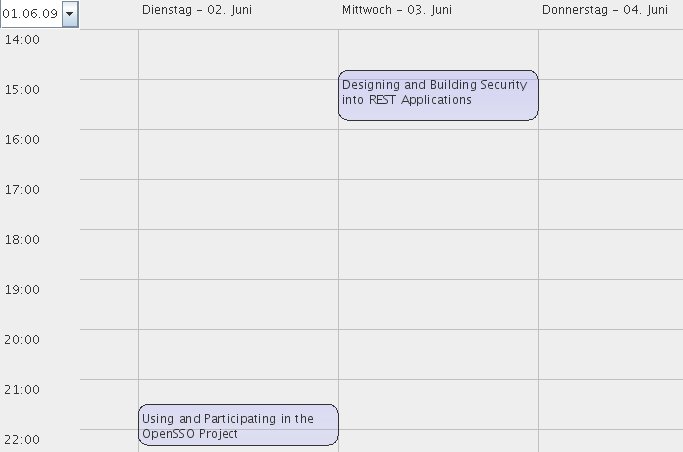
I do not attend the conference (although I would like) but this could be my schedule (a lot of conflicts, uhm):

peters-timetable1

Another cool thing about TimeFinder is that you can see easily the timetable of a lot persons or rooms. E.g. in the JavaOne example you can see which other talks one speaker has – e.g. Sean Brydon from Sun Microsystems, Inc. has the following timetable:

sean-brydons-timetable

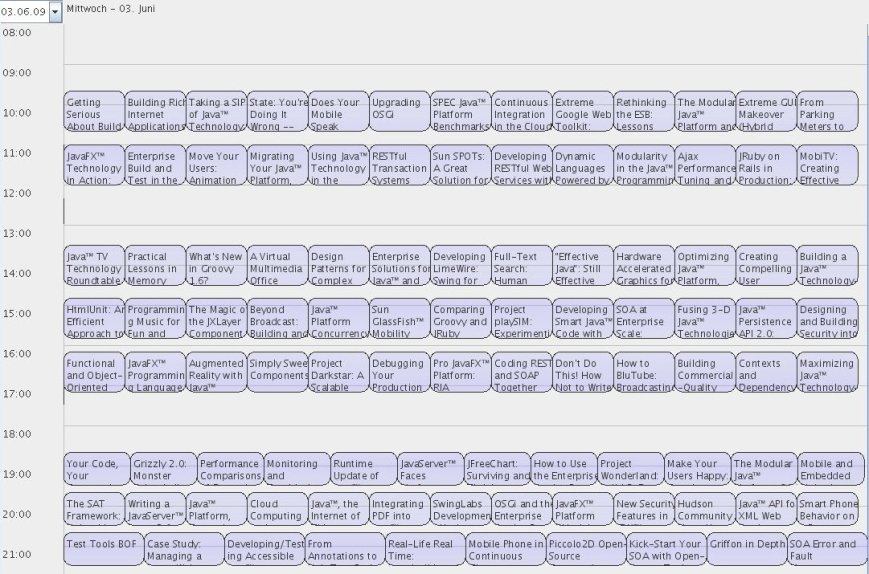
Update: I really forgot to publish the javaOne ‘overview’ ;-):

tuesday-overview

wednesday-overview1

thursday-overview

friday-overview

List of Java Look and Feels

You want a small look and feel and it should be open source? Or a professional one?

I discovered a list of several Java look and feels here.

Here is one more L&F. Do you know even more?

To set up the Look and feel in normal Java applications the following code is necessary:

try {
  UIManager.setLookAndFeel(
    UIManager.getSystemLookAndFeelClassName());
} catch (Exception e) {
}

Here is how you set up the Look and feel in Spring Rich Client: go to the application-context.xml and replace the lookAndFeelConfigurer:

<bean id=”lookAndFeelConfigurer” class=”de.timefinder.core.ui.KunststoffConfigurer“/>

Hessian Web Service Protocol – Hello World Example

Introduction

Yesterday I took a quit look to the binary communication protocol: Hessian.

With Hessian your admins will not have any troubles with port-activation for your (‘desktop’) application, if they have to access remote services (DB etc.).

The Java implemenation from Caucho is released under the Apache License 2.0. Hessian is well integrated into Spring and seems to perform well for version 3.2 (one year old!). An ORM tool which supports Hessian out of the box is Cayenne.

Example

Now to our hello world example. It is a maven project and you can get it from here (public domain of course …).

If you don’t want to use maven you should get the following jars:
hessian-libs

But maybe you have the same problems with downloading a none-corrupted hessian.jar from Caucho (Why that?) – then you will be forced to install maven or NetBeans.

The usage is simple: In NetBeans you can directly open maven projects with the maven plugin. Then start the jetty-server: go into the MyServlet class and press SHIFT+F6. You should see in the output window:
… INFO:  Logging to STDERR via org.mortbay.log.StdErrLog
… INFO:  jetty-6.1.16
… INFO:  Started SocketConnector@0.0.0.0:8080

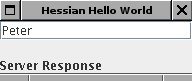
Then go to the Client class and press SHIFT+F6. You should see a new window coming up:

hessian-client

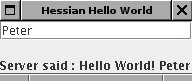
Change the text and press ENTER will push the text to the server and get the response text at the bottom of the window updated:
hessian-client-result

Now let us understand what is necessary:

  1. An interface which has to be available on the server and on the client side:
    public interface CommunicationService {
        String communicate(String str);
    }
  2. An implementation of this interface on the server side:
    public class MyServlet extends HessianServlet implements CommunicationService {
        public String communicate(String str) {
            return "Hello World! " + str;
        }
        ...
    }

    (Here only the ‘implements CommunicationService’ is important)

  3. Now the server code:
    public static void main(String[] args) throws Exception {
            Server server = new Server(8080);
            Context context = new Context(server, "/", Context.SESSIONS);
            context.addServlet(MyServlet.class, "/communication-service");
            server.start();
    }
  4. And the client code:
    String url = "http://localhost:8080/communication-service";
    HessianProxyFactory factory = new HessianProxyFactory();
    final CommunicationService basic = (CommunicationService) factory.create(CommunicationService.class, url);
    ...
    resultLabel.setText("Server said : " + basic.communicate(field.getText()));
  5. Thats it!

Looks really like RPC of Java but it is language independent – there are implementations for ruby, phyton … and it seems to be more performant than language independent solutions like XML-RPC. Are there other advantages or disadvantages?

    Deploy Content To Sourceforge

    First of all you have to create a shell:

    ssh -t USER,PROJECT@shell.sourceforge.net create

    Every time you want to deploy something you need to do this (Is there a workaround?) – this is strange …

    File Release

    Please look here for the official documentation. Or do:

    scp FILE username@frs.sourceforge.net:uploads

    After this you can add the file to a release.

    Deploy Homepage

    If you use maven for your project it is relative easy to deploy the content to sourceforge (although it was easier before the create-shell stuff):

    1. add the following snippet to the <project> node of your pom.xml:
      <distributionManagement>
      <site>
      <id>website</id>
      <url>scp://username@shell.sourceforge.net/home/groups/t/ti/timefinder/htdocs/</url>
      </site>
      </distributionManagement>
    2. mvn site:site
    3. mvn site:deploy

    Or copy directly with scp:
    scp *.jar username,timefinder@shell.sourceforge.net:/home/groups/t/ti/timefinder/htdocs/files

    Userweb

    To copy sth. to your personal website do:
    scp FILE peat_hal@web.sourceforge.net:/home/users/p/pe/peat_hal/userweb/htdocs

    TimeFinder Documentation 2009-v1

    Installation

    To run TimeFinder Java1.6 is necessary. If you not already have it then get it from here.

    To download and install TimeFinder click on this link. The java web-start engine downloads now the necessary jar files (21MB). After this was successful (it should be ;-)) you have to confirm the execution.

    Another option is to download the zip bundle from here. Then unzip the file and double click on the run.bat file if you are on Windows or click on the run.sh file if you are on linux or mac.

    While starting TimeFinder the splash-screen should appear:

    splash-screen-2009-v1

    You have to accept the Apache License, Version 2.0

    setup1-2009-v1setup2-2009-v1

    and click ‘Start TimeFinder’ which will show the main TimeFinder window (without any view).

    Manual Timetabling

    Person Table View

    To see something useful go to the menu entry Window->Show Views->Person table and e.g. create a new person:

    person-table-2009-v11

    TimeFinder marks your input red if it failed to validate it. See the small red cross-icon on the bottom of the input field for the detailed reason.

    How you can import a junk of data is described in the import sample data section.

    Be sure that you defined at least one person now. So that we can assign persons to an event in one of the following chapters.

    You can sort via clicking on one of the table headers or filter persons agains their names within the filter-textfield.

    Event Table View

    Here you can define events and its visitors. For example if you want that all persons of a class should attend Mathmatics then do the following:

    1. Create an event with the ‘new event’ button. Set the properties e.g. the name to ‘Mathmatics’:event-table-2009-v1
    2. You should have defined some persons one chapter before. Go to the persons-tab and you should see:event-table-persons-tab-2009-v1
      Add all necessary person (of the class) via the '>' button.
    3. You can add features if Mathmatics requires one room:event-table-features-tab-2009-v1
    4. Click Save. Then a new event should be listed in the table

    Location Table View

    Within the location table you can define your rooms or places with the specific capacity and features (e.g. only some rooms have a blackboard or a video installation).

    Feature Table View

    Here you can define features which are required from some events. And only some rooms offer them.

    Import Sample Data

    Download sample data from here. Unzip the file e.g. in your documents folder. Then click File->Import tim File from within timefinder. Now it will warn you that the settings will be changed. Click okay and select a .tim file from that zip archive.

    Now the progressbar at the bottom right side indicates the status of the import action. After this several persons, events etc. should be listed in the tables.

    You can also import from xml files if you have exported one before.

    Save Changes

    To save all changes (including the start times of the events gained from the optimization or from manual editing) go to the File menu and click Export Xml.

    Automatic Timetabling

    If you have some data (at least some persons, events and rooms) you can optimize the start time and room assignment of all events automagically.

    Go to the menu Timetabling and click Start Optimization.

    After finishing or stopping (see the progressbar at the bottom-right side) the optimization the start times and locations should have changed. To convince yourself that all persons have no clashing events you can go to the TimeFinder Planner in the Windows menu. All events should be scheduled in the first week:
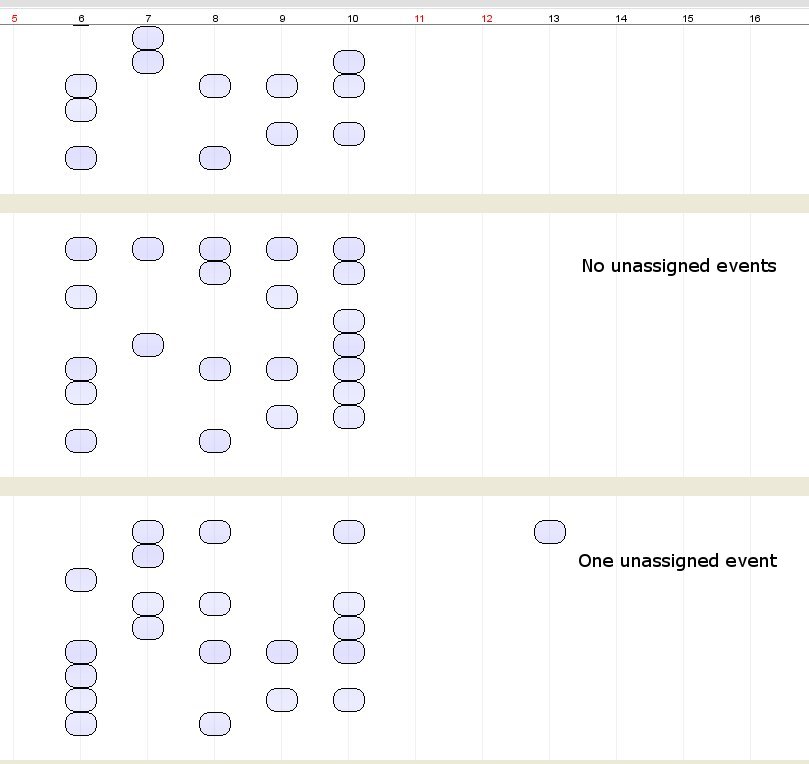
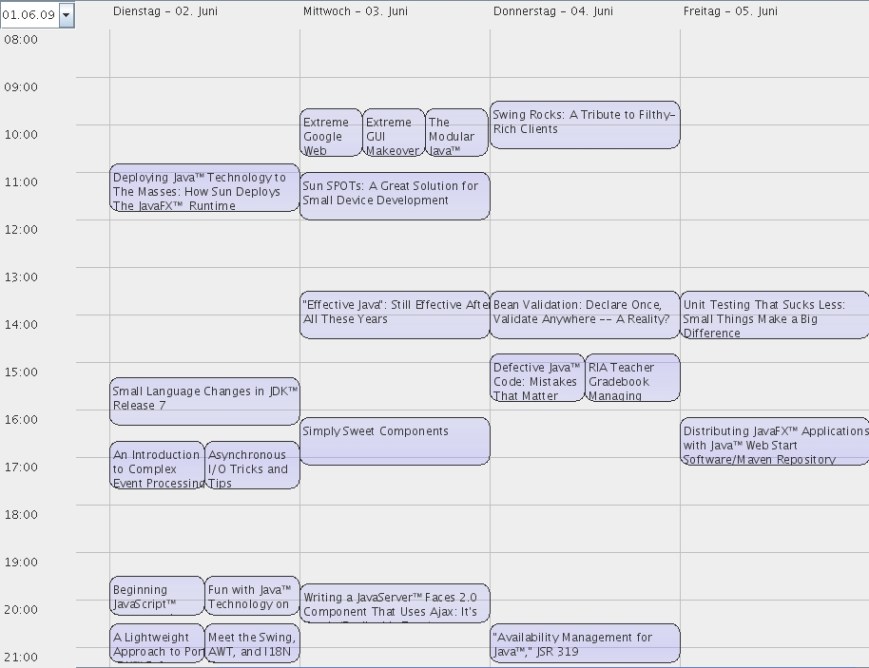
    timefinder-planner-2009-v11

    TimeFinder released – An open source timetabler

    This week I released the first public version (2009-v1) of my open source project called TimeFinder.

    Although it is an alpha quality software it could be useful for schools (and universities). There are limitations! But today I will list the features only 😉

    All interested users can try it out, comment the functionality and provide feedback what they don’t understand or if they want a new feature (e.g. import/export from a special dataformat). Please contact me under peathal at yahoo . de

    Documentation

    More detailed documentation can be found here.

    Manual Timetabling

    With TimeFinder you can create your timetable from scratch:

    1. Manually manage persons, events and locations
    2. Assign persons to events and a room to an event
    3. Required features for events can be defined. E.g. chemistry should only be scheduled in rooms with the feature ‘lab-suppport’.

    Automatic Timetabling

    Probably the most important feature of TimeFinder is its automatic timetabling engine. With that engine started (one single click after defining the data) you can optimize even difficult timetables within a few minutes or seconds. The algorithm was developed for the International Timetabling Competition 2007/08; it solved (no hard constraint conflicts) all problem sets in the given time.
    The application is not limited to school or university timetable: for example it can be used for a JavaOne timetable, because it is nearly the same task: no person can attend more than one event at a time. And timefinder simply minimizes the conflicts for all attendees.

    Visual Planner

    Special thanks goes to Vijay Nathani for his work on the visual planner component, where he combines Java with JavaFX. The component is read-only at the moment and shows a list of all resources (e.g. persons) with its assigned events. Later on we will implement drag and drop functionality to change e.g. the start time of events visually.

    Download & More Details

    You can start TimeFinder as webstart application from here (21MB) or get the zip bundle (17MB). Java1.6 is required. The software stands under the Apache License, Version 2.0 – this is a very commercial friendly license – so, you can use the TimeFinder’s UI and the engine in nearly all (good!) applications.

    The data storage of TimeFinder is currently file-based (xml) – a database storage will follow some day.

    With MyDoggy the application supports drag and drop of the windows – so you can align and manage them as you like.

    Further Thanks

    This application wouldn’t be the same without the following nice open source projects: