Profile J2SE Maven Projects With Yourkit Profiler Under NetBeans 6.7

For my open source timetabler TimeFinder I got a free license of the Java profiler from yourkit.

TimeFinder is a maven project so it starts not out of the box with the latest yk-NetBeans plugin.

But the solution is simple:

  1. Right click the project->Set Configuration->Customize->Add… then enter a name (profile-algo) for the new configuration
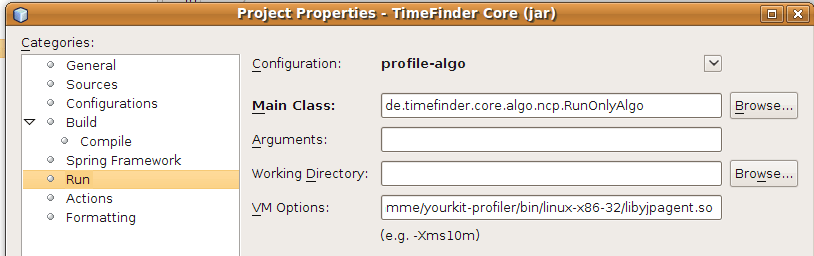
  2. Go to the Run entry in this Project Properties dialog and select the Main Class where your mavenized J2SE application should start with
    nb-config-run
  3. Under VM Options I entered (for linux)
    -agentpath:/home/user/Programme/yourkit-profiler/bin/linux-x86-32/libyjpagent.so
    for another OS please look here.
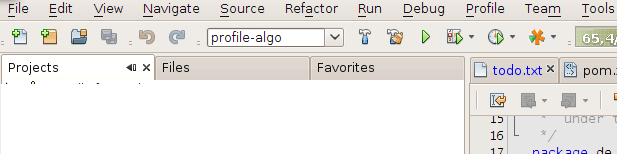
  4. Then select the previously created configuration (profile-algo) in the tool bar under the menu bar and hit F6 to start the mavenized J2SE application
    nb-config
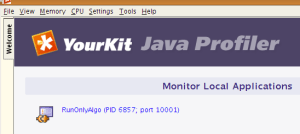
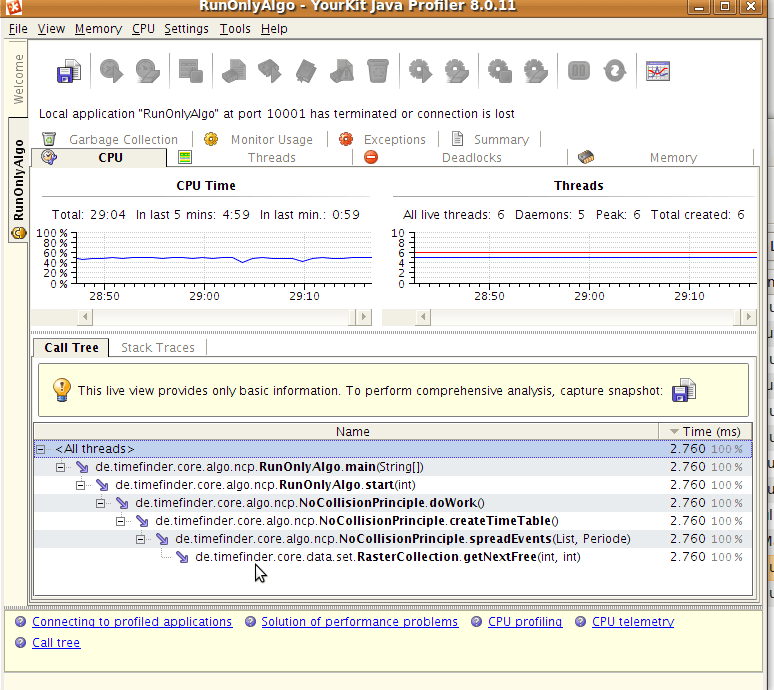
  5. At any time start the yk-profiler (before the J2SE application starts). Now a new entry under Monitor Local Applications should be listed. Click on that and you will be able to “look into” (aka “profile”) a mavenized J2SE application.
    yourkit-overview
    yk-profiler-at-runtime
  6. If you installed the NetBeans 6.7 plugin before you are even able to click on a source file in yk-profiler and this file will be opened automagically in NetBeans

Dell Latitude E6400 – The Perfect Linux Notebook? Or is Ubuntu The Perfect Linux?

GraphHopper – A Java routing engine

karussell ads

Some weeks ago I got a Dell Latitude E6400 with Quadro NVS 160M from nvidia. It has vista and a xp downgrade included, but I went the linux way. So I installed ubuntu 9.04 and … installed it 😉 Nothing more. What can I say? Even a newbie could have been done this installation.

Nice! All things worked like expected.

Update: Upgrading to 9.10 works like a charm.

Update 2011: Upgrading to 10.04 worked again really great.

Update 2012: Upgrading failed. Fresh install of 11.10 was horrible. Major problems with the graphic card [Quadro NVS 160M] and my Logitech USB Headset.

Update 2013: Installation of 12.04 xubuntu worked like a charm again (using nouveau or the nvidia driver) – except the easy to fix pulse audio problem

  • dsl Internet without setup and WLAN worked out of the box
    • btw: you can easily select through which network device you want to connect (more intuitive then any other OS I know …)
  • bluetooth works with my mobile (samsung b2100): sending + receiving files … but only with kbluetooth4
  • External Nec Monitor
  • External Fujitsu Siemens USB keyboard
  • Logitech USB Headset (skype)
  • Trackpad (with scrolling!) and trackpoint
  • webcam (tested with cheese)
  • … all the rest hardware simply worked like my Canon printer and my Epson scanner
  • After 1 hour + 1 hour for the windows installation within VirtualBox I could use WinXp under linux – very cool!
  • all the time ‘sudo apt-get install xy’ was my friend.
  • Some days after the initial installation I tried my bamboo tablet. And… you can guess it – it was strange – it works 🙂 !
  • video, sound worked too out of the box with the help of medibuntu and gstreamer-plugins

I never did a smoother linux installation and this even on a laptop. I have now sound, videos, mp3s, … with less effort even compared to any windows installation I did so far. Before the external monitor can be used I installed the nvidia driver. This was a ‘one clicker’ – I do not even remember what I exactly did. After this I disabled the laptop screen and enabled the external. I can post my xorg.conf if someone is interested. Even going to hibernate and standby are working fine. I tried to work with kde, but it looks like the plasma stuff is crashing regularly on this laptop (or because of my hardware config). So, I will have to stay with ubuntu as long as I can make WindowMaker, Enlightenment or the future of WindowMaker (Azalea) useable.

Okay, so far, so good.

But I would’nt post this stuff if things haven’t at least one drawback. The most annoying thing about this Dell Latitude E6400 is that the fan is always on. It is okay (not loud), but not as quiet as I read in some reviews :-(. It would be okay if the fan goes on on load – but it is always on. If you are in “battery mode” the fan sometimes switches off (Wow! This is silence!) I think this is a BIOS settings. Hopefully dell will turn this on in a later BIOS version for “network mode” too .

And then there is a very high cheeping, uhm! (of the harddisc ?) For other (more silent?) notebooks you should take a look at Lenovo T400 (or the recently published T400s) first or the previous version of E6400: the Dell Latitude D640.

The good thing is that the fan volume stays the same even on heavy load. Only if the heavy load remains for several minutes or it is relative hot in your room then the pc will increase the fan speed.

So, what I did with this ‘loud’ box? Dell don’t offer a 14-days-ship-back guarantee for business customers (this has nothing to do with Dell – it is normal here in Germany). So, I will use this ‘loud’ box and maybe I will tune here or there with some linux utilities.

But it seems to me a very good laptop for linux. Or maybe ubuntu is the true king here!!?

Device / Parts

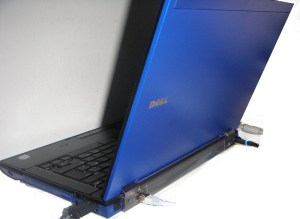
  • The whole (Regatta Blue) case of the Latitude looks stable and at the moment nothing is bouncing or looks cheaply processed. I choosed a blue color (matt) and this surface looks robust, too.
  • The 14” display is very good (matt) and the resolution of 1440×900 is nice. There is an auto dimming function enable, but you can disable this as well. It can be used in bright outside even if you dimm the display a bit.
  • The black keyboard is stable and for a notebook keyboard useable.
  • An external button can enable/disable the WLAN+bluetooth to save energy.
  • some other devices/connectors: 3 USB, 1 SD card, 1 audio in + 1 out, sata, dvd burner, webcam, …

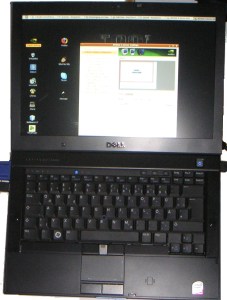
I know that a picture is sometimes more worth than 1000 words (hopefully not in this post):
latitude-e6400-frontlatitude-e6400-rear

Applications for Ubuntu

Hopefully at least one of the listed tools can be of use for your linux installation. The following application normally do not need a lot of configuration:

  • opera – the most innovative browser
  • kate – the best graphical editor. Even with block selection (enable/disable via CTRL+SHIFT+B)
  • kdirstat – get an overview of your hard disc usage
  • liferea –  a better blogbridge?
  • kpowersave – worked for my Dell E6400 (save to disk and save to ram)
  • gnome-power-manager – can show the enery usage and battery state over time! really useful!
  • VirtualBox – hosts windows xp like a charm
  • amarok – mp3, podcasts, internetradio, …
  • totem – watch videos and search youtube videos with this application
  • gimp and inkscape for your graphics
  • k3b, grip and k9copy for your cd/dvd burnings
  • openoffice and latex (with kile) for your documents
  • and last but not least: TimeFinder 😉 an open source timetable optimizer for universities and schools

Now I list some apps where you can tweak a little bit:

  • WindowMaker my favourite window manager. Some things should be enhanced to be usable by a wider audience.
    • you will need to configure a shortcut for hiding all windows
    • you have to tweak a lot of things… maybe I should put this into a separate post 😉
  • konqueror
    • I changed the view to details and saved this for all folders
    • To change that konqueror selects a folder on the first click (double click to  open it) you can change it in the following dialog even under gnome: kcmshell4 mouse
    • if you type fish://user@123.123.123.123 you can use it as a graphical scp client
  • thunderbird
    • you should install enigmail and lightning. The latter one you can install via sudo apt-get install lightning-extension
    • import/export mails
    • open urls with opera via adding or changing the following lines in a file ~/.mozilla-thunderbird/<profile>/prefs.js user_pref(“network.protocol-handler.app.http”,”/usr/bin/opera”);
      user_pref(“network.protocol-handler.app.https”,”/usr/bin/opera”);

Here are some applications for development

  • kdesvn – the best subversion client I ever used. Works even for large repositories (>2GB) … unlike Tortoise for win.
  • netbeans – the best IDE, install java before
  • squirrel-sql – the best database editor
  • konsole – the best command line
  • joe – the best command line editor (but not on every linux box available unlike vi)

BTW: ‘best’ does not mean that there are other good tools. Feel free to post your application stack as a comment or you can create your stack here.

NetBeans 6.7 finally released

Since today the final version of NetBeans 6.7 can be downloaded here. And do not forget to look here for a feature overview.

If you tried the release candidates of 6.7 you will welcome all the new features! Great work! Where can we donate?

The first impressions of this release for me as a NetBeans user are:

  • seems to use less memory
  • imported the settings of 6.5 with no problems
  • you can now simply install plugins of a previous installation. this is especially useful if the plugin is not available from the update center.
  • maven is now integrated (no need to install it as plugin)
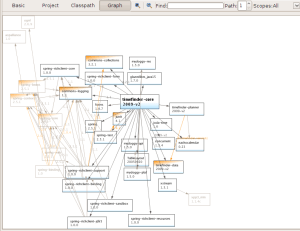
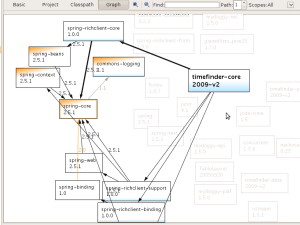
  • you can view maven dependencies graphically (like eclipse already had). See below. And: there is a new button “Build with dependencies” in the right-click-on-project-menu.
  • interrupting maven execution is now possible
  • now test cases execute a lot faster for mavenized projects
  • executing one test via CTRL+F6 instead SHIFT+F6, so that you can execute the corresponding test even if only the java class file is open. (CTRL+SHIFT+F6 for debug test file)
  • all tests (java, ruby, …) happen in the same tab and several search tabs are possible now
  • if you open a resource with ALT+SHIFT+O a case insensitive string now works a friend told me that this was already the case for him earlier than 6.7 … hhmhh …
  • Synchronize Editor With Views -> “The project explorer will then snap to the file currently being edited” (taken from here)
  • some small issues remains:
    • cannot open the source file if you click on the failed test output (and only if you execute the tests of one project)
    • if you miss a static import e.g. import static org.junit.Assert.*; the auto fixing does not add this.

Unit tests

nb6.7-unit-tests

Maven dependencies

nb6.7-mvn-dependency-graph

But the cool thing here is that clicking e.g. on spring core shows you all the possible paths to it and grays out all the unimportant

nb6.7-mvn-dependency-graph2

see some comments on JavaLobby

Configure “Move Between Windows With Popups” (ALT+TAB) in Gnome

From my favourite window manager (WindowMaker) I am used to switch applications via ALT+TAB and then select the icon via mouse or arrow keys.

application-switch-windowmaker

In gnome I couldn’t find a way to configure it with arrow keys (compiz enabled), but I found a way to switch via mouse.

application-switch-gnome

First do:

sudo apt-get install compizconfig-settings-manager

Then execute ccsm. Now you should go to the configuration of the “static application switcher”. Under Behaviour (in German ‘Verhalten’) you should see sth. like activate mouse selection (‘Erlaube Mausauswahl’). That’s it

compiz-settings

Happy application switching! And tell me if you find a way to switch with arrow keys!