Old Hat: Java Logging

Nearly all projects need to log something. You can use System.out.println(String) for that. But if you want to write the message to a file later you have to change all the logging statements in your code.

So it is recommended to use at least the Logger provided by the jdk:

java.util.logging.Logger

Other projects for logging exist e.g. the popular log4j. But this library is complex and the jar file is too big for my purposes.

Today I discovered slf4j, which is small (<25KB) and provides wrappers for the jdk-Logger and log4j. The nice thing about this library is that you can simply put the jar files into the classpath and slf4j will use e.g. the jdk-Logger. I like it more than the jdk-Logger because slf4j offers a nice interface for logging (the methods are easier to use) e.g.:

  • info(String)
  • info(String, Throwable)
  • warn(String)
  • warn(String, Throwable)
  • error(String)
  • error(String, Throwable)

But all logger don’t have a feature to log directly to the user. So I implemented a Handler that prints a JDialog with the message and the full stack trace. The stack trace will be available if the user clicks on the details button.

/*
 * This file is part of the timefinder project.
 * Visit http://www.timefinder.de for more information.
 * Copyright (C) 2008 Peter Karich.
 *
 * This project is free software; you can redistribute it and/or modify it
 * under the terms of the GNU Lesser General Public License as published by
 * the Free Software Foundation; version 2.1 of the License.
 *
 * This project is distributed in the hope that it will be useful, but
 * WITHOUT ANY WARRANTY; without even the implied warranty of
 * MERCHANTABILITY or FITNESS FOR A PARTICULAR PURPOSE.
 * See the GNU Lesser General Public License for more details.
 *
 * You should have received a copy of the GNU Lesser General Public License
 * along with this project; if not, write to the Free Software Foundation,
 * Inc., 59 Temple Place, Suite 330, Boston, MA  02111-1307 USA
 * or look at http://www.gnu.org
 */
package de.timefinder.framework;

import java.awt.BorderLayout;
import java.util.logging.Handler;
import java.util.logging.Level;
import java.util.logging.LogRecord;
import javax.swing.Icon;
import javax.swing.JOptionPane;
import javax.swing.JPanel;
import javax.swing.JScrollPane;
import javax.swing.JTextArea;
import javax.swing.JTextField;
import javax.swing.SwingUtilities;
import javax.swing.UIManager;

/**
 * This class provides a Log Handler to be publish directly to the user via
 * a JDialog, which offers a details Button.
 * 
 * @author Peter Karich, peat_halatusersdotsourceforgedotnet
 */
public class SwingHandler extends Handler {

    @Override
    public void publish(LogRecord record) {
        if (!isLoggable(record)) {
            return;
        }
        int level = record.getLevel().intValue();
        int jOptLevel;

        if (level >= Level.SEVERE.intValue()) {
            jOptLevel = JOptionPane.ERROR_MESSAGE;
        } else if (level >= Level.WARNING.intValue()) {
            jOptLevel = JOptionPane.WARNING_MESSAGE;
        } else {
            jOptLevel = JOptionPane.INFORMATION_MESSAGE;
        }

        logIntoDialog(jOptLevel, record.getMessage(), record.getThrown());
    }

    @Override
    public void flush() {
    }

    @Override
    public void close() throws SecurityException {
    }

    private static void logIntoDialog(final int messageLevel,
            final String errorMessage,
            final Throwable th) {

        if (!SwingUtilities.isEventDispatchThread()) {
            try {
                SwingUtilities.invokeAndWait(new Runnable() {

                    public void run() {
                        logIntoDialog(messageLevel, errorMessage, th);
                    }
                });
            } catch (Exception ex) {
                JOptionPane.showConfirmDialog(null, errorMessage);
            }

            return;
        }

        StringBuilder sb = new StringBuilder();
        sb.append(errorMessage);
        if (errorMessage == null || errorMessage.length() == 0) {
            if (th != null) {
                sb.append(th.getClass().getName());
                sb.append(": ");
            }
            // TODO I18N
            sb.append("Error-Message Not Available>");
        }

        String newErrMessage = sb.toString();
        if (th != null) {
            TFFormatter.printReason(sb, th);
        }

        JScrollPane scroll = new JScrollPane(new JTextArea(sb.toString(), 20, 40));
        JPanel panel = new JPanel(new BorderLayout());
        panel.add(new JTextField(newErrMessage), BorderLayout.CENTER);
        panel.add(scroll, BorderLayout.SOUTH);
        // TODO I18N
        Object[] options = {"Okay", "Details"};
        int n = JOptionPane.NO_OPTION;
        Icon icon;

        switch (messageLevel) {
            case JOptionPane.WARNING_MESSAGE:
                icon = UIManager.getIcon("OptionPane.warningIcon");//NO I18N
                break;
            case JOptionPane.ERROR_MESSAGE:
                icon = UIManager.getIcon("OptionPane.errorIcon");//NO I18N
                break;
            case JOptionPane.INFORMATION_MESSAGE:
                icon = UIManager.getIcon("OptionPane.informationIcon");//NO I18N
                break;
            default:
                icon = UIManager.getIcon("OptionPane.questionIcon");//NO I18N
        }

        boolean visible = false;
        //Switch between Details and No-Details:
        while (n != JOptionPane.YES_OPTION) {
            scroll.setVisible(visible);
            panel.revalidate();

            n = JOptionPane.showOptionDialog(
                    null,
                    panel,
                    newErrMessage,
                    JOptionPane.YES_NO_OPTION,
                    messageLevel,
                    icon,
                    options,
                    options[0]);

            visible = !visible;
        }
    }
}

No OOXML

OOXML is now ISO standard!

OOXML will divide the (internet) communication into a Microsoft-world and the rest. With the doc-format MS started the ‘way of division’ and now they will be successful!?

Finally I call on users all around the world to look to Norway and follow the example we have set. Raise a storm of protest! Uncover the irregularities that have taken place in your country! Insist that your Governments change their vote to reflect the interests of ordinary people and not the interests of monopolists and bureaucrats.” — Steve Pepper

So, nevertheless go to http://www.noooxml.org/petition and see the reasons, why OOXML shouldn’t be a standard.

Java Web Frameworks Survey

Introduction

Recently I began to play with Eclipse and web frameworks, because I will use Eclipse at work and there I will program with JSP. Another reason for this web-framework-survey is that I need a web front-end for my open source project Jetwick.
I love Swing so I looked how easy it is to program something useful with up-to-date web frameworks in comparison to Swing. For NetBeans support of several web frameworks (gwt, wicket, …) please look here.

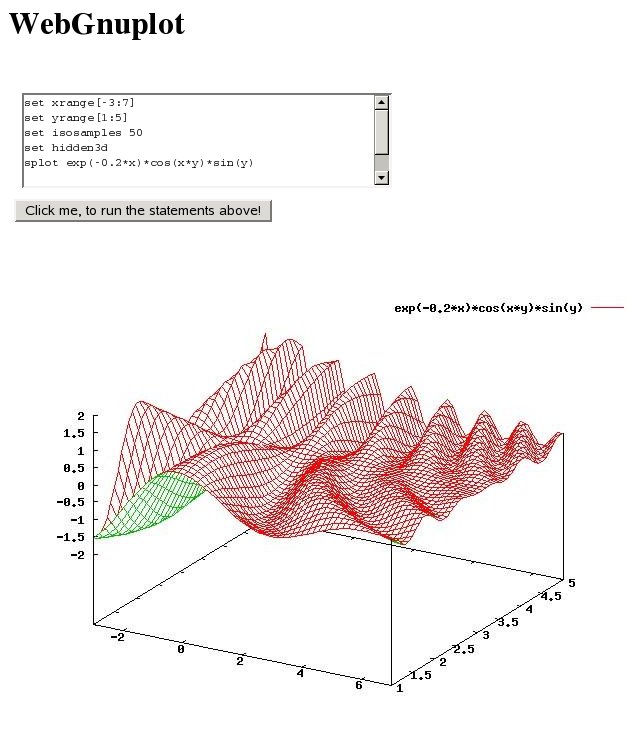
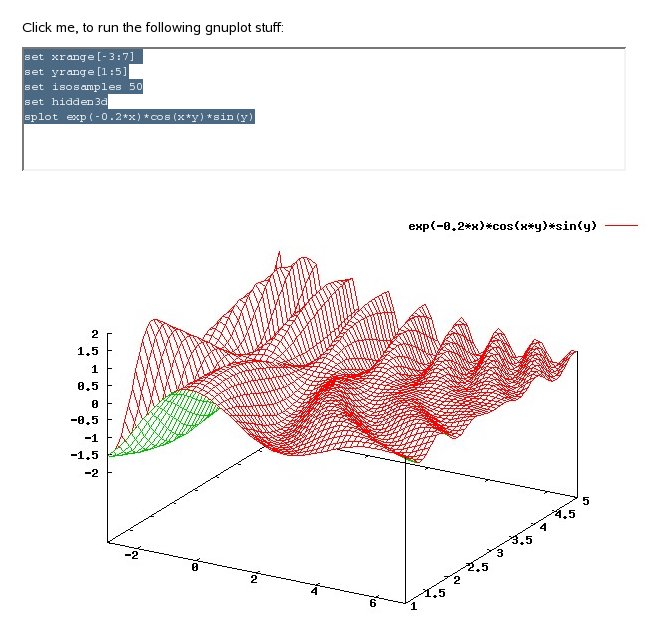
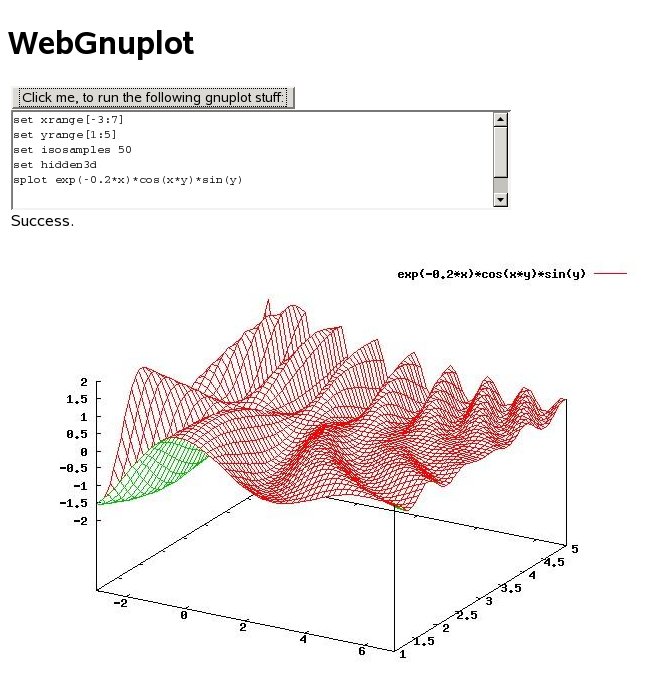
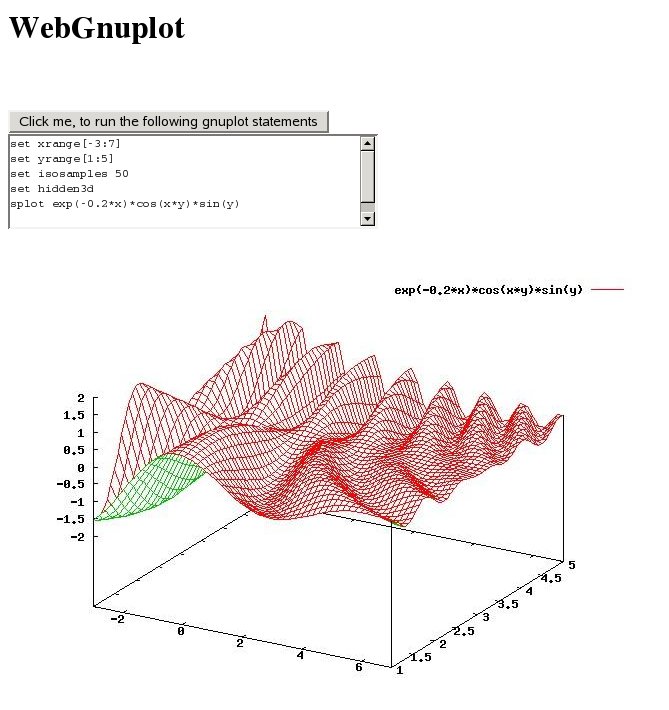
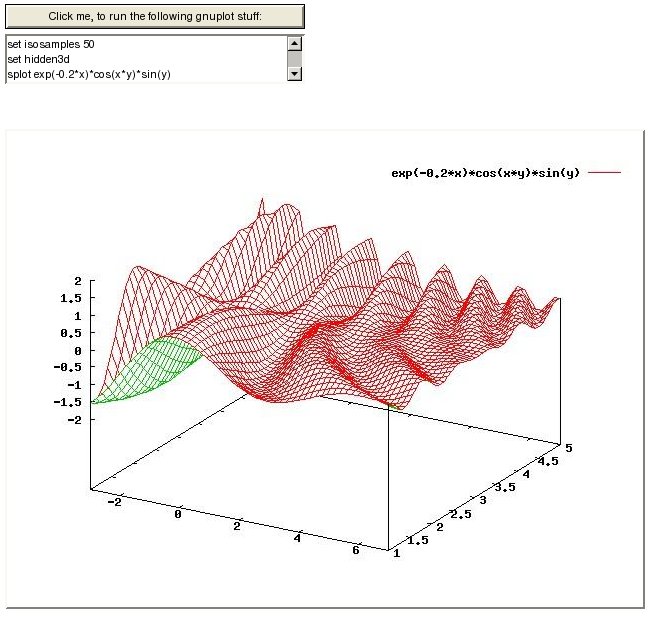
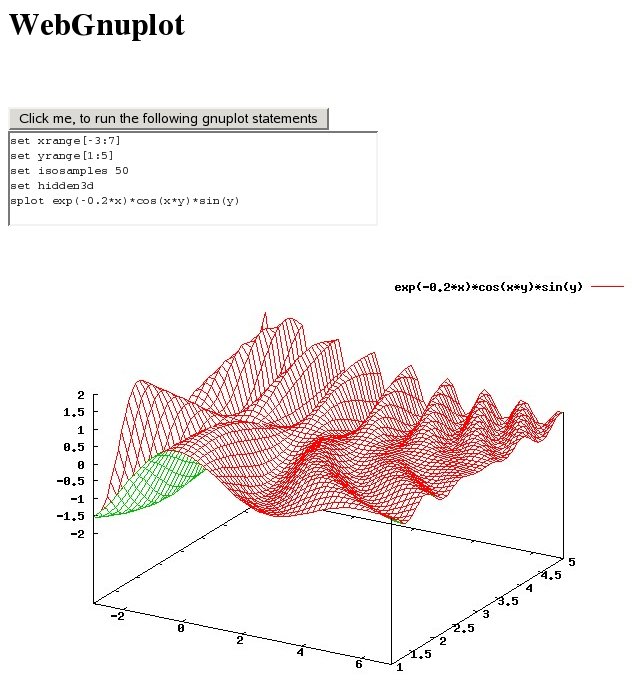
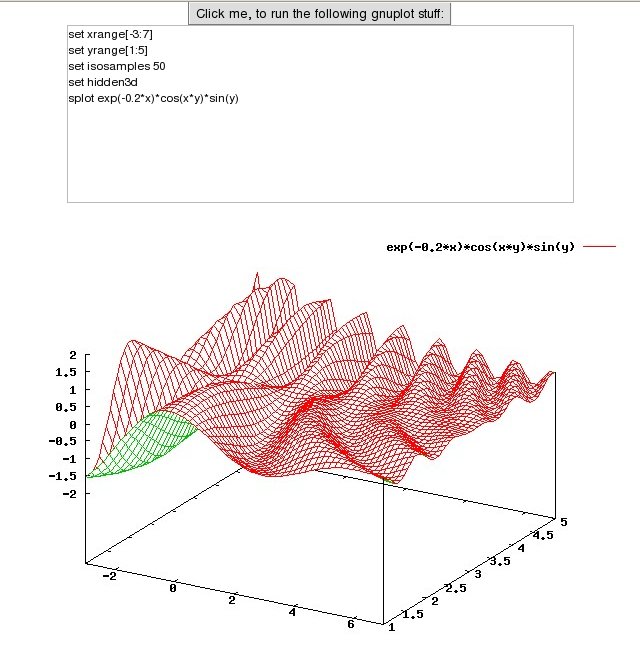
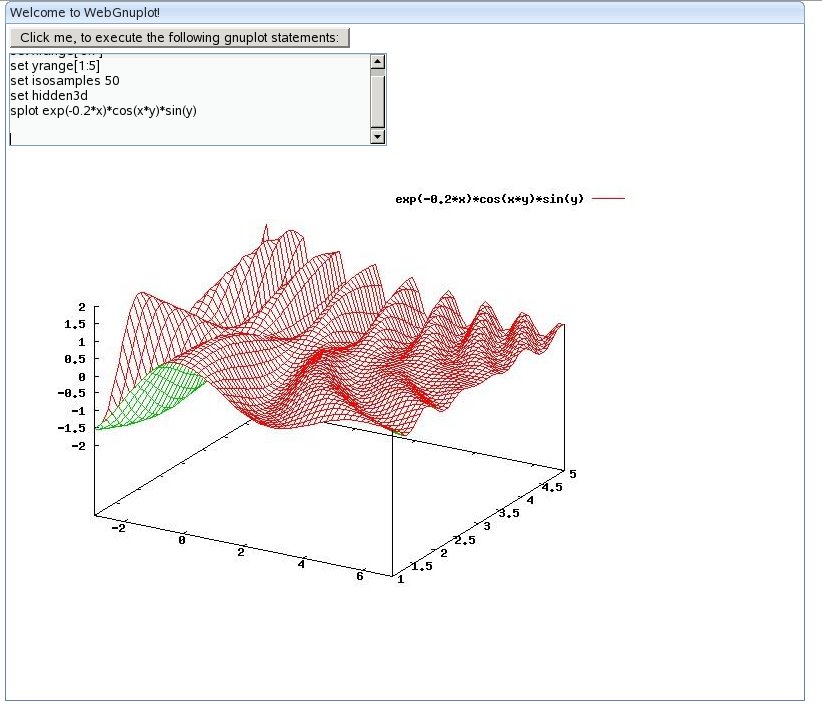
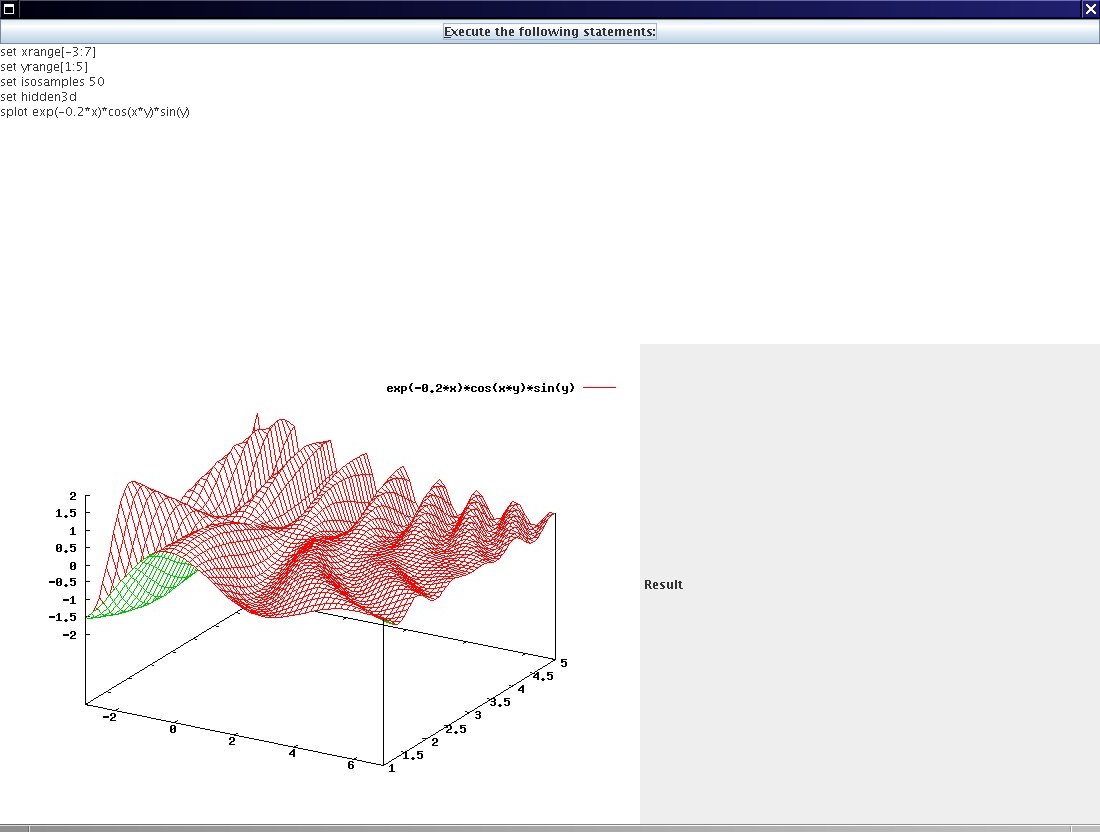
The example I implemented in all frameworks is very minimalistic, but includes three basic components. The example offers a ‘Button’ to perform some gnuplot statements, which will be grabbed from a ‘TextArea’. On the server the statements will be performed (through gnuplot) and the user gets back the calculated image. E.g. if you type ‘plot sin(x)’ and click the button you will get the appropriated graph as an image within the web page.

I used the following statements for gnuplot and you can increase the isosamples to 100 to see what will happen if the respond of the server takes too long:

set xrange[-3:7]
set yrange[1:5]
set isosamples 50
set hidden3d
splot exp(-0.2*x)*cos(x*y)*sin(y)

Just copy and paste this into the appropriate ‘TextArea’ of the application.

Why I chose gnuplot?

  • it is free and available under linux and windows.
  • it looks nice
  • integration into LaTeX is best (good for scientists)

I used my simple class (see WebGnuplot package) to get the image from gnuplot, although there is a nice JNIBinding for gnuplot available at sourceforge.

Web Frameworks

I only chose the ‘most interesting’ frameworks, which are open source. The decision which one is interesting and which not was random. And I excluded frameworks where I need to program directly with Javascript. If you know other projects, where I can program in pure Java, then please let me know! Or ask me if you have suggestions or questions about the implementations.

Here is the list and how to access them in the example:

Click on the links to go directly to the web page of the product. Through this web framework comparison I have the feeling that there are some categories of frameworks:

  • Swing like approach: Echo, Thinwire and WingS
  • ‘Integrate components’ into HTML: Wicket and Click
  • ‘integrate scripts’ into HTML: JSP, ZK (maybe better: ‘action based’?)
  • compile Java to Javascript: GWT

Please help me here to use existent categories. Or this one and this.

Further Work

I will add some more frameworks in a later post. E.g. Struts, Stripes, MyFaces, Seam, SpringMVC, IT-Mill Toolkit and jZeno? Please make some suggestions here.

For some more Java web frameworks look on my own list, on java-source.net or on therightsoft.com. Or take a look at this nice comparison. .

Results

Swing

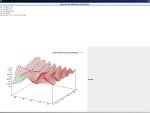
As the first step I created a Swing UI within 3 minutes – I will compare this later with the web frameworks.

Here is a screenshot of the result (It is not nice, but it was fast … and well, late):
Additional Information:

  • User Libraries: ‘WebGnuplot’ (See the resources section)

Click Framework

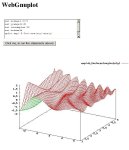
Click is compareable to wicket, but it is slightly easier I think. It is a lot easier than JSP, because you don’t need getters and setters (i.e. an extra bean) – just the variable (e.g. form) which will be mapped to the HTML correspondent ($form), which is an identifier of the used scripting language (velocity). This means you haven’t to know the HTML specific components like in wicket, although it is a plus if you know them. It took me about one hour to get it running. I didn’t try the adapted Eclipse (clickIDE), but with this IDE you should easily edit the HTML file’s e.g. velocity support for the editor.

Here you can see the result:
Additional Information:

  • It seems to me that click integrates very good with Cayenne. Cayenne is an object relational mapper (ORM) and a nice (easy!) alternative to e.g. Hibernate.
  • I needed an extra servlet, which returns the image as an OutputStream.
  • A nice page returns if an error occurs with a lot of details and the full stack trace.
  • User Libraries: ‘Click’, ‘WebGnuplot’ and ‘Servlet API’ (See the resources section)
  • License: APL 2.0

Echo

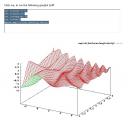
Echo was the first web framework I tried. It was very easy and fast to get it working (less than 30 minutes). The only big difference to Swing was the AwtImageReference class, which I had to use for displaying in the label. It is nice that a message window pops up (‘Please Wait…’), if the respond of the server takes too long.

Here you see the result:
Echo2 Results

Additional Information:

  • User Libraries: ‘Echo’ and ‘WebGnuplot’ (See the resources section)
  • License: MPL

Google Web Toolkit

The Google Web Toolkit works different compared to all other frameworks. So it took me a lot of time (5 and more hours) to get it working and understand what to do. I will explain the procedure now.

  • You will have to compile the Java sources. Put the server side one into a sub-directory ‘server’ and the client side one into ‘client’. To compile the source you have to call ‘GWT-application-compile’ for this example. For the client side the compilation step generates Javascript sources from Java – to be executed on the clients webbrowser. And for the server side the Java code will be compiled and GWT generates e.g. the web.xml and some more files.
  • Then you can run your application in a ‘normal’ browser, if you deploy the application to the server. But there is another mode, they called it ‘host mode’, where client AND server code run on the virtual machine (jvm). Then you can test your application directly within Java, which is very useful for debugging I think.
  • For the interaction between client and server the GWT uses Java’s remote procedure calls (RPC). I will use it in the example, because the Image class does not support bytes or BufferedImage as input. So I send the gnuplot statements to the server (via RPC) and then the client reads the image from a separate ImageServlet (which knows the statements). This routine is a little bit complicate, but otherwise I wouldn’t use RPC and cannot show you how it works 😉

Another concept of GWT is that you have to define ‘slots’ within the HTML files. From Java code you can access those slots via:

VerticalPanel vp = new VerticalPanel();

vp.add(button);

RootPanel rp = RootPanel.get("appSlot");

if(rp != null) {  rp.add(vp); }

This makes it easy to integrate GWT in your current development. E.g. to enhance static content with some AJAX.

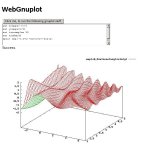
I got the following result:
Additional Information:

  • User Libraries: ‘GWT’ and ‘WebGnuplot’ (See the resources section)
  • GWT is a client centric framework
  • It is possible to let GWT create you an Eclipse project if you want an easy access to compilation etc. (I didn’t try this…).
  • There is a NetBeans plugin, which makes development very easy (without that I wouldn’t have figured out where my configuration mistake was…).
  • You will have to replace the linux specific jar by the jar of your OS. But I don’t know how to generate a compile and a shell script for this specific project. Normally you would run the ‘applicationCreator’.
  • I needed an extra servlet, which returns the image as OutputStream
  • License: APL 2.0

JSP

JSP was (and is?) the standard technology for a lot of companies to create web projects. It works similar to ASP.

To get started it takes me only approx. one hour.

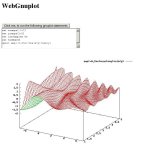
Here you can see the result:
Additional Information:

  • User Libraries: ‘WebGnuplot’ and ‘Servlet API’ (See the resources section)
  • I needed an extra servlet, which returns the image as an OutputStream
  • License: APL 1.1

Thinwire

Thinwire’s last published version is relative old – maybe the authors skipped the development.

Update: This is not true. Look here and here.

I think it is easy to get started (approx. 50 minutes). Although I had some problems:

  • You will have to set the bounds of every component explicitly – this makes it really ugly if it comes to computer generated interface (e.g. Strings withing Labels).
  • It is not easy to display dynamically generated images to the client. Unlike echo and wings, we need here an ImageServlet for this work like e.g. in JSP and GWT.
  • And I had to use the Button class to display an image, because the Image class does not work. This was the reason that it took relatively long to get it working.

Result:
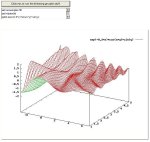
Additional Information:

  • If an exception raises you will get a window with the message and a full stack trace!
  • User Libraries: ‘Thinwire’, ‘WebGnuplot’ and ‘Servlet API’ (See the resources section)
  • I needed an extra servlet, which returns the image as an OutputStream
  • License: LGPL

Wicket

In Wicket you will only be successful, if you know some basics in HTML. You will embed the components via HTML tags and access them from Java via id’s. Although it seems to be complicated I got it within one hour. Maybe that was because of the provided example from JFreeChart forum. I think Wicket will integrate well in existing environment based e.g. up on pure Servlets or JSP.

Result:
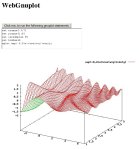
Additional Information:

  • User Libraries: ‘Wicket’ and ‘WebGnuplot’ (See the resources section)
  • License: APL 2.0

WingS

It was even a little bit easier than Echo to get started (less than 20 minutes), because there is a class SImageIcon which takes a BufferedImage as parameter in one of its constructors. So I haven’t to use the documentation – I just used auto-completion of the IDE.

You will get a typically ‘waiting cursor’, if the respond of the server takes too long. My feeling was that WingS was a little bit slower than e.g. Echo with the task of displaying the image after I pressed the button.

Here is the result:
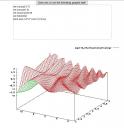
WingS Result

Additional Information:

  • User Libraries: ‘WingS’ and ‘WebGnuplot’ (See the resources section)
  • License: LGPL

ZK

It took relative long to get started. 3 or 4 hours. Now I know the steps you have to do:

  1. You will have to understand how to create a zul file for your UI. But there is a demo application on the web site, where you can find a common usage of every component.
  2. You will have to understand how to get information from the client via Path.getComponent(“/zkWindow/error”); and
  3. how to push the results to the client via:
    AImage image = new AImage(“Image”, bytes);
    myimage.setContent(image);

But after understanding how zk works, it was easy for me to create the necessary classes and zul files. The default layout is very nice I think. But please look here for yourself:
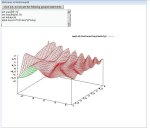
Additional Information:

  • User Libraries: ‘ZK Framework’ and ‘WebGnuplot’ (See the resources section)
  • License: GPL or Commercial

Resources

You can find all examples as Eclipse projects here. All my code stands under public domain if not otherwise stated. So you can do what you want with them (I.e. for all purposes: commercial etc.).

Try the following procedure to get it working:

  • Install gnuplot and adjust the command line in de.wg.core.GnuplotHelper e.g. for windows it is C:\GPpath\gnuplot.exe I think (I used linux).
  • Then you will need a webserver (I used tomcat) and adjust the location of your webapps folder in all the build.xml files.
  • Build the WebGnuplot project to create the jar in the dist folder (run the build task of build.xml) and change the location of this project in all examples (ant/build.xml).
  • Build all the examples: just run all the ‘build’ ant tasks.

I splitted the examples into several eclipse projects to avoid conflicts (e.g. more than one project uses beanshell) and to compile them independently.

You will have to set up the user libraries for Eclipse to make auto-completion possible. You should put the project specific JAR-files into a subdirectory ‘lib’ of every project.

Define the following user libraries:

  • WebGnuplot: WebGnuplot.jar
  • Servlet API: servlet-api.jar e.g. from tomcat’s common/lib folder.

  • Click: 1 file, 1.8 MB, version: 1.4
  • Echo: 3 files, 0.457 MB, version: 2
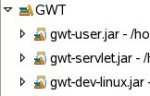
  • GWT: 3 files, 11.8 MB, version: linux-1.4.61
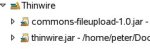
  • Thinwire: 2 files, 0.481 MB, version: 1.2 RC2

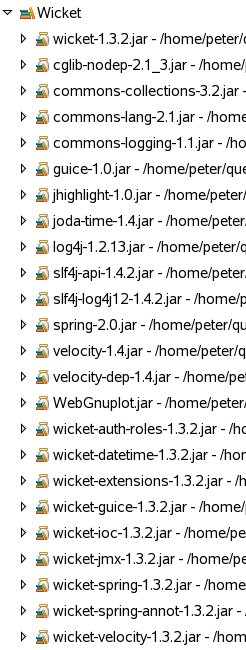
  • Wicket: 23 files, 8.2 MB, version: 1.3.2
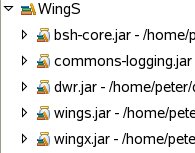
  • WingS: 5 files, 2.3 MB, version: 3.2

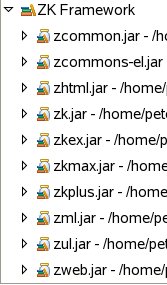
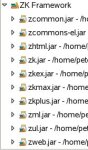
  • ZK Framework: 31 files, 19.9 MB, 3.0.3
Maybe you have some usage from the following list, which is based on information from ohloh:

  • Click with 1-3 developer
  • Wicket with at least 4 developer
  • GWT with at least 4 developer
  • Thinwire with 1 developer
  • Echo with 1 developer
  • WingS at least 2 developer
  • ZK Framework at least 5 developer

Please correct my assumptions if I they are wrong!

You can find a slightly modified version of this article on javalobby, where it is also possible post comments.

Conclusion

And the winner is …. my brain, hehe.

But which project is the best one? It depends! Do you need commercial support? Do want to integrate it into an existing project e.g. with a pure Servlet solution? Do you want to integrate the UI tests in your regular tests? And so on.

Try the examples or look into the source to get a feeling of ‘how to work’ with a specific framework.

I hope you will have fun!
First Steps in Eclipse

Why Eclipse?

Some days in the past I decided to try out eclipse 3.3.2. A lot of people are using it here in Germany and especially companies develop new plugins for it – it is a kind of an industry standard. I always felt a little bit hassle when people are talking about eclipse and say it is better than NetBeans. I only knew NetBeans, so I didn’t know if and where they are right and where not. So this blog entry collects some experiences I made while exploring eclipse.

Please, feel free to post your favorite eclipse feature as a comment.

Day 1

I explored the following features:

  • Generating the serialVersionUID for serializeable classes – just with one click (CTRL+1).
  • Spell checking while editing! Very useful!!
  • Eclipse suggests possible keybord bindings if you e.g. type SHIFT+ALT+X. This is especially useful for newbies or for discovering features of e.g. new versions.
  • I have the feeling that the startup is faster and the GUI is more responsive in the first minutes (compared to NB 6.0), although sometimes something strange happens and the IDE freezes for several ten seconds (?).

and the following drawbacks:

  • Fat size for pure Java Developer package (approx. 80 MB for gtk download)
  • For every OS you have to download another package (there is and will be no such OS independent zip, because eclipse is based on SWT, right?)
  • I don’t understand the workspace concept -wherefor we need it?? My friend Gregor explained it to me. If you have several big projects, where each big project has several eclipse projects. Then every big project gets its own workspace, which can save different properties, like default JDK etc.

Day 2

My friend Gregor – the author of Moonlight | 3D – explained me some more details of eclipse. Thanks to him, again!

Pros:

  • Formatting of Java (or xml) code can be done via CTRL+SHIFT+F. But here the greate difference to netbeans is that you can define different formatting styles for each project and apply them via this keyboard shortcut! Access this via: Right click on the project->Properties->Java Code Style-> Formatter->Enable project specific settings
  • It is possible to add necessary and remove unnecessary imports via CTRL+SHIT+O. The great thing here is, that you can apply this action on several files easily. Via clicking on a package (with several files in it) and press the short cut (or right click the package->Source->Organize Imports). The same is true for formatting the source code.
  • If you want that the debugging will break on every exception (dynamic breakpoint creation), then enable this via: (Menu) Run->Add Java Exception Breakpoint
  • Update process can be done in background (Update via: Help->Software Updates)
  • Mylyn is a great tool for bug tracking. You will indirectly assign source files to bug reports.
  • There are several plugins available; even commercial. And a lot of vendors publish there adapted version of the eclipse IDE to make it easier for the user.

Cons:

  • The plugin and distribution hell – there are a lot of plugins, which are useful for basic Java development, but are not installed per default. E.g. the VE (Visual Editor for Swing or SWT development) is currently not available for eclipse 3.3.
  • There is a profiler, but Gregor means that it is the hell to run it (compared to the netbeans one.)

Good to know:

  • TPTP = Test Performance Tools Platform
  • Feature Overview via Help->About Eclipse Platform->Feature Details. A feature is a set of plugins.
  • Execute a Java program via F11 and debug it with CTRL F11.
  • Rename a variable (etc.) with ALT+SHIFT+R
  • Subversion via right click on the project->Team. Then: ‘Share…’ means import into a new repository. You can install Subclipse or Subversive to use this.
  • Find Usage via ‘References’ (Right click in the source editor)
  • There are two preferences of the Java editor: Window->Preferences->Java->Editor->General->Editors or Window->Preferences->General->Editors

Conclusion

Eclipse is a nice IDE for Java development and now I know why people are happy with eclipse, although I think NetBeans offers a compareable rich set of features. Maybe every IDE has its scope of usage. I think the reason for the ‘IDE war’ is not that one tool is better than another (this would be too easy), but it is more a war of some people to legitimate their laziness to NOT trying the other IDE(s) in detail. A future candidate for me is definitely IntelliJ, which is free for open source projects.

For some great video tutorials look here.

Discovered a Linux Security Hole

Problem

The following procedure is not a critical security issue, but you should have this in mind if you powersave your computer the next time.

  1. Start some programs, which will capture alot of RAM. Sometimes it works with less programs 😉
  2. powersave -U
  3. Restart you computer and wait until you see a black monitor (Sometimes some characters are on it). Only 2 or 3 seconds later you will see the desktop for only a very short time.
  4. In this time frame (you see the desktop!) you can press ALT+TAB one or more times until the list of window (to choose the application) pops up. Now hold the ATL key and wait until …
  5. You see a black monitor again, but no screesaver will appear. This is the bug! You can release the ALT key, if the black monitor is replaced from your desktop image or so.
  6. Now you can do all things without a password typed in!

I posted this issue to the kde security mailing list, but I got no responds (Maybe it was the wrong addressee or not a big issue…).

This works for me on my suse 10.1 (i586) on all window managers (kde, windowmaker, …).

(2.6.16.21-0.25-default1 kernel, powersave 0.12.20)

Conclusion

If you now think linux is weak in respect to security relevant stuff, I think you are wrong and right at the same time. Because the core linux system of linux (kernel + some apps like shells) are mature and very secure. But if you install a lot open source programs, which can be in alpha or beta status you might get security problems. So the best you can do is update you software or disconnect from internet 😉

Latex Gimmick

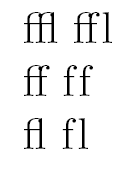
There is an interesting feature offered by latex: typographical ligatures. A german example for double and even tripple f’s would be: Schiff (ship) or Sauerstoffflasche (oxygen tank). Where the German orthography prohibits ligature across two syllables. So it would be wrong to apply the ligature for the tripple f on Schifffahrt (shipping).

In Latex the ligature is applied automatically for every double f (or ffl or fl), but you can avoid this via \/ or |.

Look at the following picture and see the ‘ligatured’ letters on the left and letters with standard typography on the right side:

Ligature

Here is the latex code:

ffl ff\/l \\
ff f\/f \\
fl f\/l

Inkscape – Intuitive and Elegant

Introduction

At some time in the life of a student you will have to make a sketch. It could be a simple legend of an existing picture or an advanced geometry.

In linux you have the choice between xfig, inkscape and openoffice. The latter both will run under windows, too, but I haven’t any experiences about the stability. Please post additional programs I should have mentioned here.

Today I will talk about inkscape, because

  • it is opensource
  • it is easy to use (not the case for xfig)
  • it can import+export eps (not the case for openoffice 2.3. under linux)
  • it is intuitive (not the case for the others)

In my work I found some serious drawbacks of the 0.45.1 version:

  1. No support for equations (like openoffice) or latex (like xfig)
  2. No support for greek letters (like openoffice)
  3. Sometimes bounding box isn’t correct for the exported eps file (unlike xfig)

If you look for a solution of the first and second issue, look into the ‘Text Manipulation’ Section. For the last issue please look into the ‘Images’ section.

Get Started

First you should download inkscape and read this basic tutorial. Here you can get more documentation about inkscape. If you want some hints about text manipulation you could go there. But I will cover the most used features of inkscape in this article. Last but not least you should consult the ‘local’ documentation that comes with inkscape und is available under the ‘Help’ menu.

Basics

Is is important to know how to zoom: CTRL + mouse wheel

Translate the paper vertical: mouse wheel

Translate the paper horizontal: SHIFT + mouse wheel

On the left you see all the actions that are possible:

Actions

Some of them you can access faster using the keys: F1 until F9. Try it out.

How can I move objects?

Just select them (click on them) and drag them with the mouse.

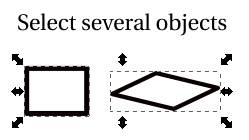
How can I select several objects?

Select them all with dragging the mouse from the top left of all to the bottom right. (“Catch them with the mouse rectangular”). Another way is to hold the SHIFT key if you click another object and do this for all necessary objects.

Inkscape-Select several objects Then it is possible to move all or scale them.

If you want to group these objects, which is necessary if all operations should performed on all objects at the same time, you can press the button: Inkscape-grouping or go to object->group objects.

How can I copy some objects?

Just select all objects and CTRL+D (‘Clone’ in Edit menu) or copy and paste cia: CTRL+C and CTRL+V.

Geometric Objects

The most operations below can be performed not only on boxes, e.g. rotation of text is possible with the described method, too.

Create Boxes

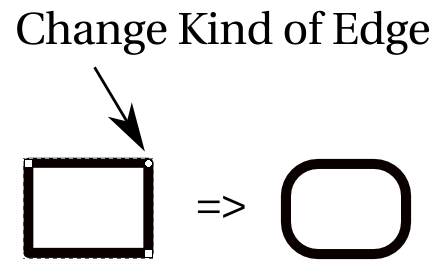
It is easy press F4 (or the box button) and drag the mouse so that your rectangle will be visible. Press F2 to see the circle on the edges of the box like in the following self explanatory pictures.

Change Edge FormChange Box Size

If you press F1(select the box) you can scale the box, too. But if you click the box again, shearing or rotating is also possible if you click on the appearing doubled arrows:

Inkscape-scalingInkscape-Shear+Rotate

How you can change the color or fill the box?

Just click the button: Inkscape-object properties or go to object->’fill and stroke’. A new dialog pops up and in the first tab you can choose the filling color and pattern. In the second tab you can choose the color of the line. And in the third tab you can choose the line style and width.

If you want to select a color from existing objects, then select the object where you want to apply the new color and use the pipette symbol or F7 to choose then (click on) the existing object.

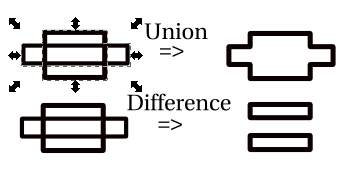
How to merge or make more complex structures based on a box?

This is possible if you select e.g. two objects (see Basics), go to the menu ‘path’ and select union or difference:

Inkscape-Union+Difference

Paths

Create a path with SHIFT+F6 and click everywhere, where you want to create a point and right click if you are done:

Inkscape-Path

How did you make these round edges?

Just drag the mouse before you click.

How to change existing paths?

  • Press F2 and click on a point to move it.
  • To move several points just select them and drag with the mouse! (Intuitive, right?).
  • Add a vertex via the button:Inkscape-Add a Node , you will have to select two nodes before clicking it and inkscape will add the node between them.

How to convert edges into curves?

Convert via the button:Inkscape-Vertex to Curve

Then Press F2, select the appropriate vertex and drag the circle of one rod:

Inkscape-Rods for a vertex of a path.

Inkscape can align the vertices for you. Select some vertices and click on the button: Inkscape-Align. Then choose e.g. horizontal alignment and you will see the result immediately.

How can I make arrows?

Press SHIFT+F6 Draw a path, select it and edit the object properties (via SHIFT+CTRL+F). Go to the last tab ()

And choose an appropriate

Text Manipulation

To emulate the sub- and superscript of an equation you can use ALT+Down Arrow and ALT+Up Arrow and place it before the text (selection will also work) that you want to move:

Inkscape-Subscript

The you will have to change the size of the moved text: Select the appropriate text click on the button: Inkscape-Text Menu and change the size.

Inkscape-Subscript Better

It is also possible to create custom space width via ALT+Left Arrow or ALT+Right Arrow. This can be useful for equations, too.

How is it possible to write with greek letters?

This is possible, although not very intuitive: greek letters are supported through unicode. E.g. type CTRL+U and then 03b1 and you will see an alpha. I created a SVG document (public domain) with all letters – just copy and paste into your document:

Inkscape-Greek Letters

My favorite feature of inkscape is that you can align text to an arbitrary path. Just select the text and the path at the same time and go to the Text menu and click on align to path (Text an Pfad ausrichten in my German version)

Inkscape-Text Alignment

Images

Importing of several formats are possible. I have tested: eps, bmp, png and jpg. Go to ‘File’->’Open…’

Exporting of eps and svg is possible via ‘Save As…’ in the file menu. If you have problems with a wrong bounding box in eps files, which results in cutting the image, then you could overlay a box around the whole picture and make this box transparent to force a special ‘bounding box’.

The only supported raster image type while exporting is png. Use it via: ‘Export Bitmap’.

Conclusion

Inkscape is a powerful tool, which offers a rich set of graphical operations (although not all). It is intuitive to use, i.e. once you understand the basic operations it is not difficult to explore more complicated just through ‘trial and error’. Working and get started with inkscape is very fast compared to other programs like xfig, which is an ‘older’ pure linux solution.

Job

English

Has somebody a job for me? For my curriculum vitae and further information about myself look here. I would prefer a job as a programmer (or leader) or as a software architect. I learned several things about developing large application in several open source projects I created:

  • object oriented desing and desing patterns (My wife bought me this here. ;-))
  • junit testing
  • creating ant task
  • lookup concept

One of my dreams would be to develop a timetabling suite like my open source project gstpl. It would be a plus, if I can do this in Java with NetBeans. But I am flexible at this point and I like to learn new things.

In one year I will be flexible to change my current location (Bayreuth, Germany). But at the moment it should be either Bayreuth or cities close to it. Another solution would be working from home office or working only half a full timejob, because of my family.

If you are interested, please contact me!

Deutsch

Haben Sie einen Job für mich? Hier finden Sie meinen Lebenslauf und weitere Informationen über mich. Eine Arbeit als Programmierer (evtl. leitender Programmierer) oder als Software Architekt würde mir gefallen. In zahlreichen ‘open source’ Anwendungen habe ich viele nützliche Dinge gelernt die mich befähigen auch große Anwendungen zu schreiben. Als Physiker habe ich es gelernt komplexe Abläufe und Zusammenhänge zu analysieren und Konzepte für eine Lösung zu erstellen.

Einer meiner Träume wäre es die Dinge, die ich während der Programmierung von gstpl erlernt habe, anzuwenden bzw. das Programm zu erweitern.

Wenn in ihrer Firma mit Java bzw. NetBeans gearbeitet wird, bitte sprechen Sie mich an! Aber in dieser Hinsicht bin ich flexibel und ich lasse mich gerne und schnell auf neue Dinge ein.

Leider bin ich erst in einem Jahr örtlich flexibel. Momentan würde nur Bayreuth und Umgebung in Frage kommen. Halbtags oder von zu Hause aus wären auch Möglichkeiten die ich mir vorstellen könnte.

Hier finden Sie meine Kontaktinformationen.

Neonazi

It is annoying, there is another Peter Karich in Germany. And he is a Neonazi. But this is not me!!!! And I am not a Neonazi! I know the barbarity of the second world war and I am NOT xenophobic or anit-Semitic.

Es nervt wirklich, wenn man ‘Peter Karich’ unter Google.de sucht kommen Meldungen über einen Neonazi immer an erster Stelle. Aber das bin nicht ich!!! I kenne die Grausamkeiten des 2. Weltkrieges und ich bin weder fremdenfeindlich noch antisemitisch!

Standard Timetabling Format

Today I will again promote my timetabling project 😉

To recreate a new Java-based Timetable Suite called TimeFinder some people and I want to create a standard timetabling format before going further.

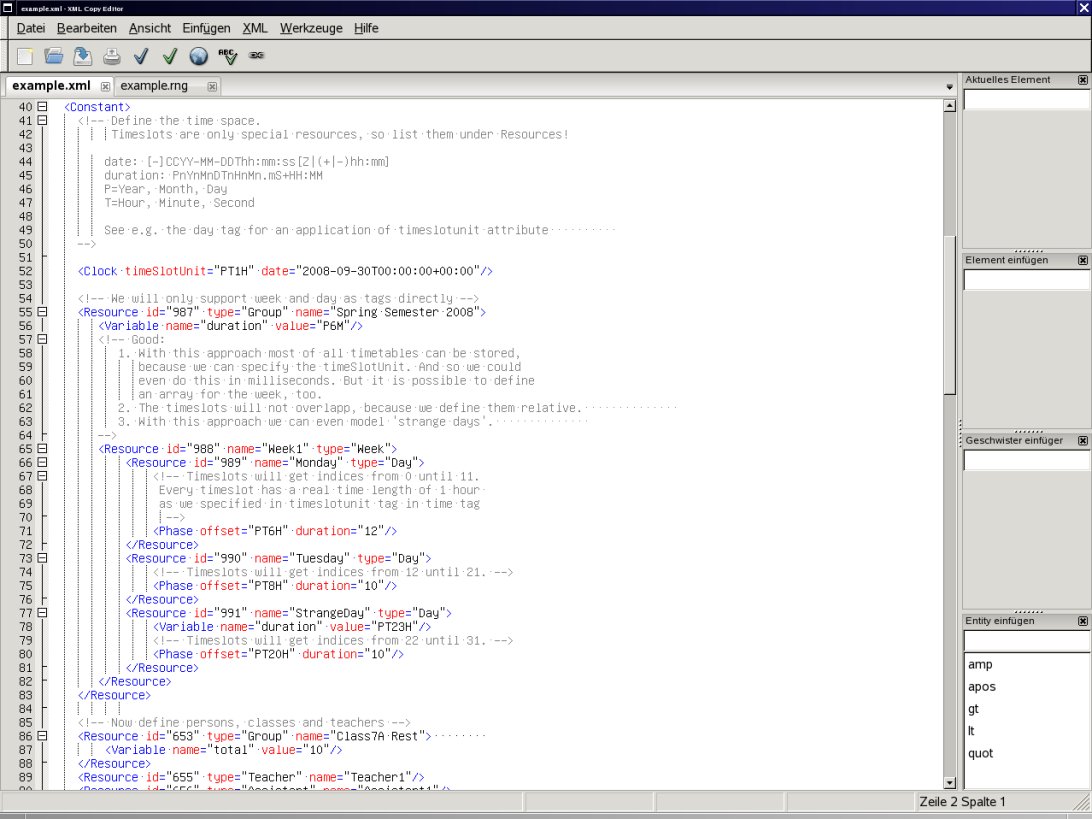
Today I released a new draft 0.3 of this discussion with an example xml file that was created with the xml copy editor:

Excerpt of draft 0.3 of the standard timetabling format

Therefore I had to use Relax NG and I will use relaxer: http://www.relaxer.jp/documentation/ to create Java classes from it. For more information on this subject see my blog about Relax NG.

The format should help to improve interoperation of open source, university and commercial timetabling applications. To my knowledge all applications use different formats. The only wider accepted standard is TTML, but it gets complicated for the ‘normal’ developer and unusable for the user. Taken from here there they said:
Perhaps, the main reason these languages have not been adopted as standard is that
they offer no advantages to the user over any traditional programming language.
These idealistic languages do not simplify the modelling process, and can even be
restrictive in that they do not have all the features of a modern programming
language, are overly complicated or appear cumbersome.

For the latest information of the progress of the ‘Timetabling Standard Format’ visit the discussion here and look at the TimeFinder project.