Introduction
At some time in the life of a student you will have to make a sketch. It could be a simple legend of an existing picture or an advanced geometry.
In linux you have the choice between xfig, inkscape and openoffice. The latter both will run under windows, too, but I haven’t any experiences about the stability. Please post additional programs I should have mentioned here.
Today I will talk about inkscape, because
- it is opensource
- it is easy to use (not the case for xfig)
- it can import+export eps (not the case for openoffice 2.3. under linux)
- it is intuitive (not the case for the others)
In my work I found some serious drawbacks of the 0.45.1 version:
- No support for equations (like openoffice) or latex (like xfig)
- No support for greek letters (like openoffice)
- Sometimes bounding box isn’t correct for the exported eps file (unlike xfig)
If you look for a solution of the first and second issue, look into the ‘Text Manipulation’ Section. For the last issue please look into the ‘Images’ section.
Get Started
First you should download inkscape and read this basic tutorial. Here you can get more documentation about inkscape. If you want some hints about text manipulation you could go there. But I will cover the most used features of inkscape in this article. Last but not least you should consult the ‘local’ documentation that comes with inkscape und is available under the ‘Help’ menu.
Basics
Is is important to know how to zoom: CTRL + mouse wheel
Translate the paper vertical: mouse wheel
Translate the paper horizontal: SHIFT + mouse wheel
On the left you see all the actions that are possible:

Some of them you can access faster using the keys: F1 until F9. Try it out.
How can I move objects?
Just select them (click on them) and drag them with the mouse.
How can I select several objects?
Select them all with dragging the mouse from the top left of all to the bottom right. (“Catch them with the mouse rectangular”). Another way is to hold the SHIFT key if you click another object and do this for all necessary objects.
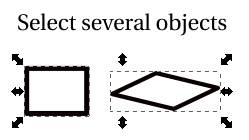 Then it is possible to move all or scale them.
If you want to group these objects, which is necessary if all operations should performed on all objects at the same time, you can press the button:  or go to object->group objects.
How can I copy some objects?
Just select all objects and CTRL+D (‘Clone’ in Edit menu) or copy and paste cia: CTRL+C and CTRL+V.
Geometric Objects
The most operations below can be performed not only on boxes, e.g. rotation of text is possible with the described method, too.
Create Boxes
It is easy press F4 (or the box button) and drag the mouse so that your rectangle will be visible. Press F2 to see the circle on the edges of the box like in the following self explanatory pictures.
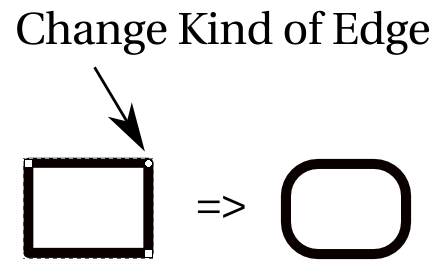

If you press F1(select the box) you can scale the box, too. But if you click the box again, shearing or rotating is also possible if you click on the appearing doubled arrows:


How you can change the color or fill the box?
Just click the button:  or go to object->’fill and stroke’. A new dialog pops up and in the first tab you can choose the filling color and pattern. In the second tab you can choose the color of the line. And in the third tab you can choose the line style and width.
If you want to select a color from existing objects, then select the object where you want to apply the new color and use the pipette symbol or F7 to choose then (click on) the existing object.
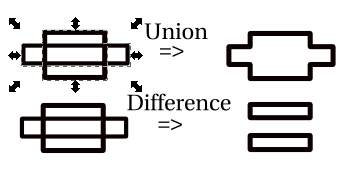
How to merge or make more complex structures based on a box?
This is possible if you select e.g. two objects (see Basics), go to the menu ‘path’ and select union or difference:
Paths
Create a path with SHIFT+F6 and click everywhere, where you want to create a point and right click if you are done:

How did you make these round edges?
Just drag the mouse before you click.
How to change existing paths?
- Press F2 and click on a point to move it.
- To move several points just select them and drag with the mouse! (Intuitive, right?).
- Add a vertex via the button:
 , you will have to select two nodes before clicking it and inkscape will add the node between them.

How to convert edges into curves?
Convert via the button:
Then Press F2, select the appropriate vertex and drag the circle of one rod:

Inkscape can align the vertices for you. Select some vertices and click on the button:  . Then choose e.g. horizontal alignment and you will see the result immediately.
How can I make arrows?
Press SHIFT+F6 Draw a path, select it and edit the object properties (via SHIFT+CTRL+F). Go to the last tab ()
And choose an appropriate
Text Manipulation
To emulate the sub- and superscript of an equation you can use ALT+Down Arrow and ALT+Up Arrow and place it before the text (selection will also work) that you want to move:

The you will have to change the size of the moved text: Select the appropriate text click on the button:  and change the size.

It is also possible to create custom space width via ALT+Left Arrow or ALT+Right Arrow. This can be useful for equations, too.
How is it possible to write with greek letters?
This is possible, although not very intuitive: greek letters are supported through unicode. E.g. type CTRL+U and then 03b1 and you will see an alpha. I created a SVG document (public domain) with all letters – just copy and paste into your document:

My favorite feature of inkscape is that you can align text to an arbitrary path. Just select the text and the path at the same time and go to the Text menu and click on align to path (Text an Pfad ausrichten in my German version)

Images
Importing of several formats are possible. I have tested: eps, bmp, png and jpg. Go to ‘File’->’Open…’
Exporting of eps and svg is possible via ‘Save As…’ in the file menu. If you have problems with a wrong bounding box in eps files, which results in cutting the image, then you could overlay a box around the whole picture and make this box transparent to force a special ‘bounding box’.
The only supported raster image type while exporting is png. Use it via: ‘Export Bitmap’.
Conclusion
Inkscape is a powerful tool, which offers a rich set of graphical operations (although not all). It is intuitive to use, i.e. once you understand the basic operations it is not difficult to explore more complicated just through ‘trial and error’. Working and get started with inkscape is very fast compared to other programs like xfig, which is an ‘older’ pure linux solution.
 Navigatone
